
Communication templates
Every e-mail and chat message the platform sends starts from a template. This article explains how to review those templates, customise their wording per language, and check the result before it reaches anyone.
Customising a template changes only its wording. It does not change when the message is sent or who receives it.
Overview
Navigate to: Left menu: Content, then Communication.

The page has two tabs:
- Mail: the e-mails the platform sends to your colleagues and to your third parties.
- Chat: the messages the platform posts to Microsoft Teams and Slack.
Every template already has default wording, so you only need to visit this page when you want to change something. A template you have never edited keeps working exactly as shipped.
Note: the Chat tab does not control the messages that appear inside the platform itself on a record. Those are described in Messages.
1. The Communication page
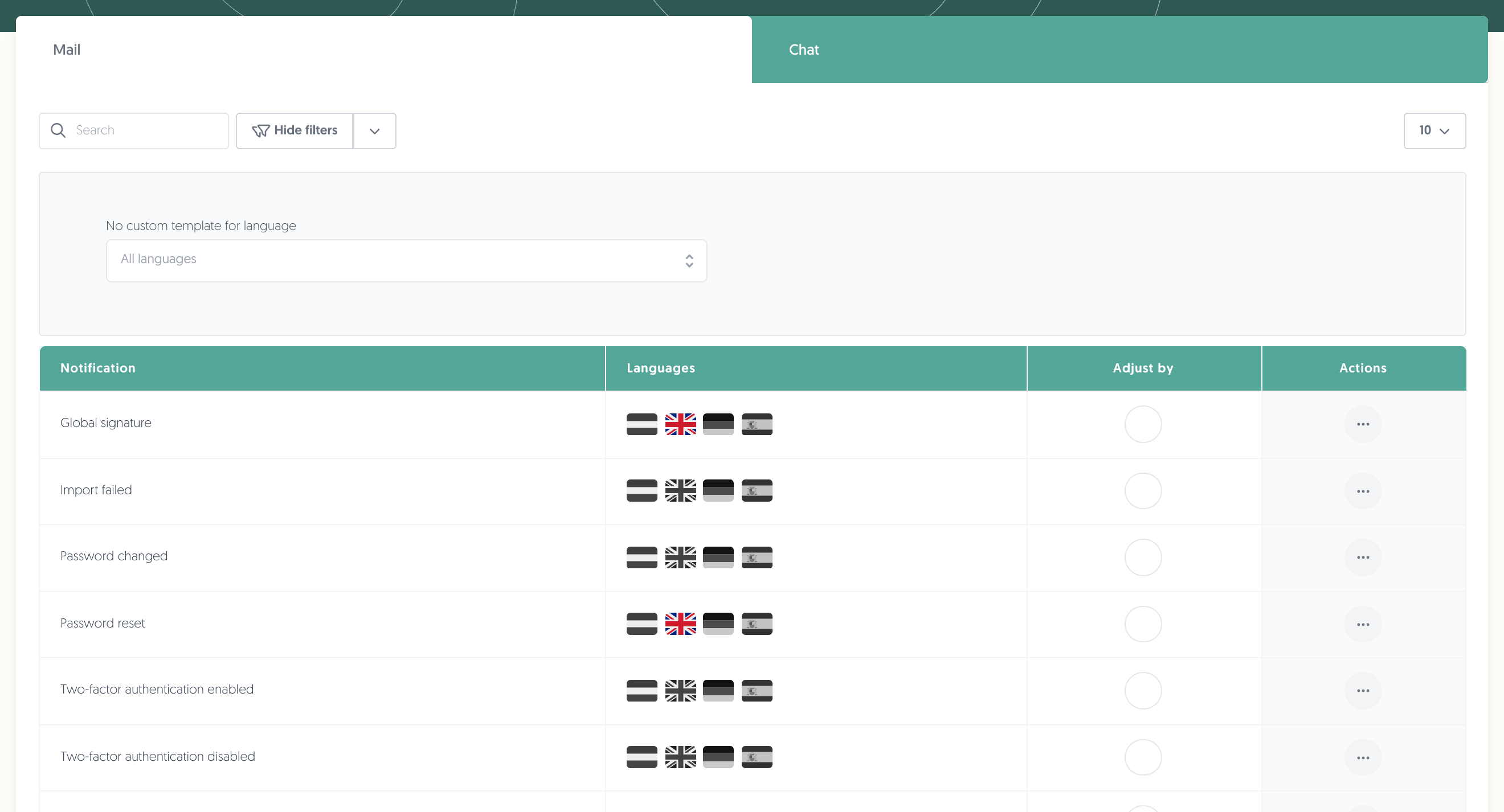
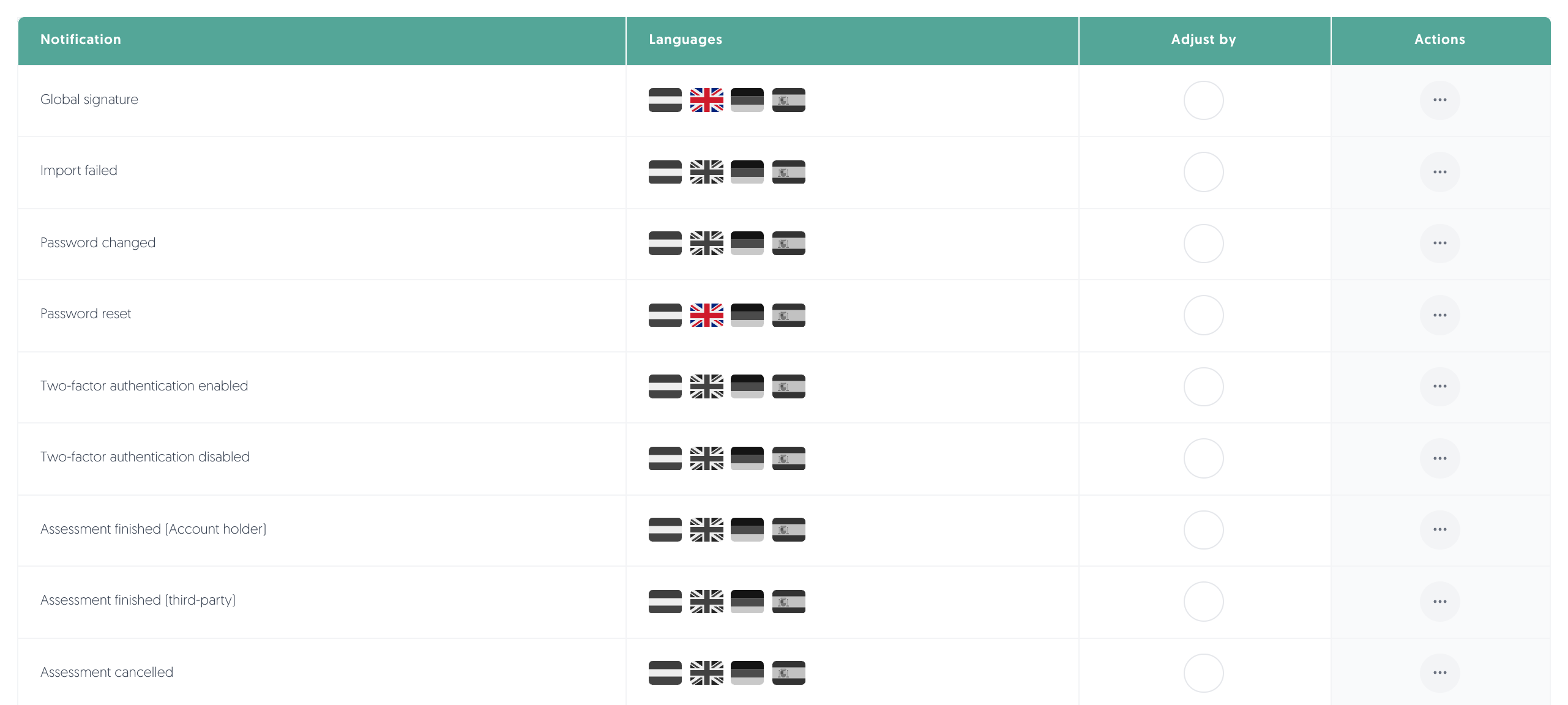
Table
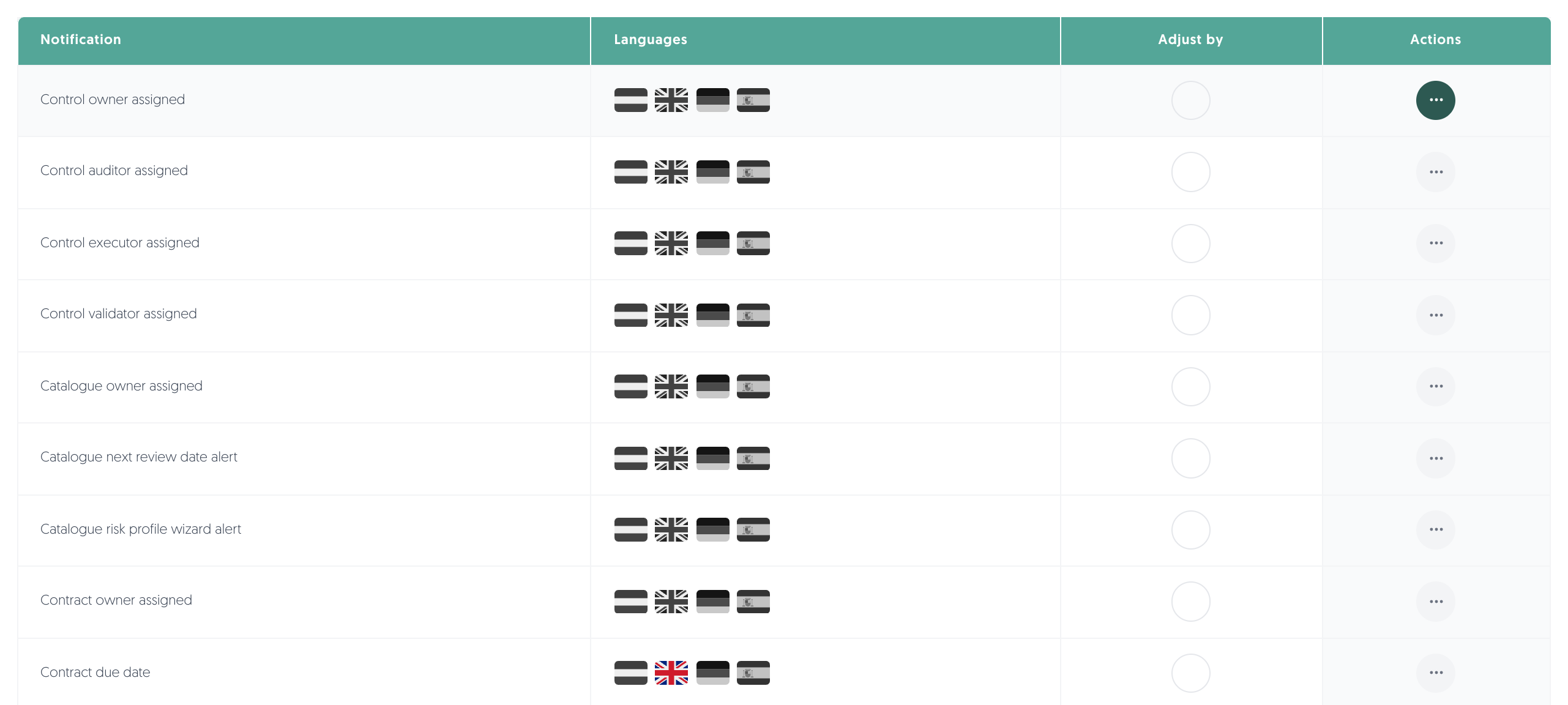
- Notification: the name of the e-mail or chat message.
- Languages: one flag per available language. A flag is in colour when that language has wording of your own, and grey when it does not.
- Adjust by: who last changed the template.
- Actions: the ••• menu described below.
Search and filter
- Search: find a template by name.
- Clear search: remove the search term and show every template again.
- Filters: opens the filter panel.
- No custom template for language: shows only the templates that have no wording of your own in the language you pick. Use this to find the gaps after adding a new language.
- Clear filters: reset the filter panel.
- Number of rows per page: change how many templates are listed at once.
Adjust by

Hover the avatar to see when the template was last changed and by whom.
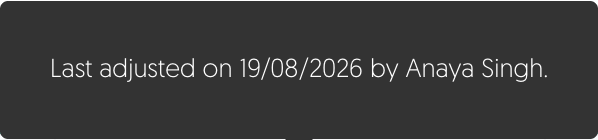
There are three states in this column:
- An avatar: someone in your organisation has customised this template.
- An empty circle: the template has been customised, but no record of who did it is available. This happens for changes made before the platform started keeping that record.
- An empty circle with the message "No template yet": the template still uses its default wording.
Actions
Click on the ••• menu on a template row.
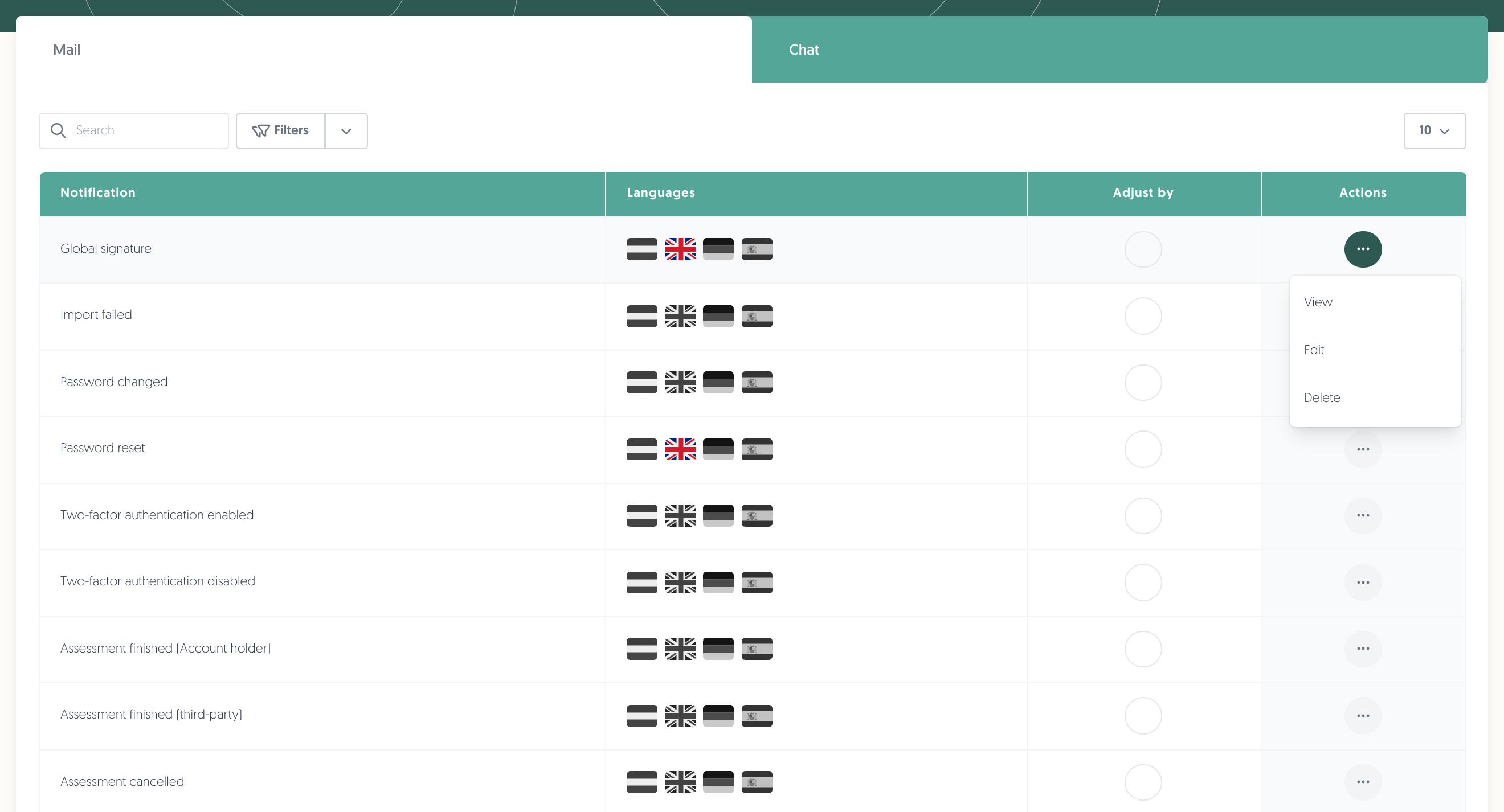
- View: open the template read-only. This is what you see if you have permission to read templates but not to change them.
- Edit: open the template editor.
- Delete: remove your own wording, so the template returns to its default. See 5. Reset, delete, and defaults below.
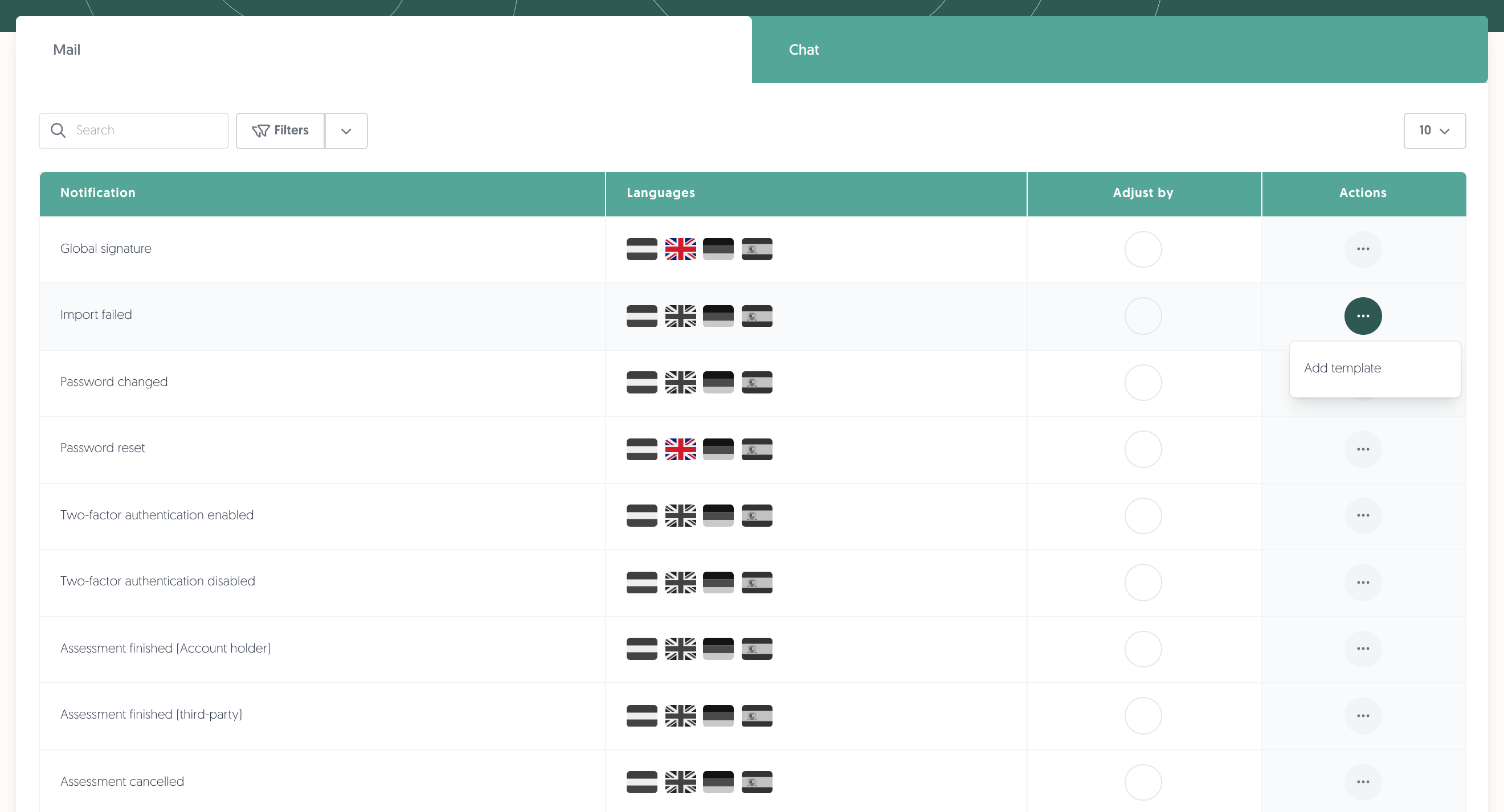
On a template that still uses its default wording, the menu offers Add template instead.
2. Mail templates
Edit a mail template
- Open the Mail tab.
- Search for the template you want to change.
- Click on the ••• menu, then on Edit (or Add template).
- Change the Subject and the Contents.
- Click on Save.
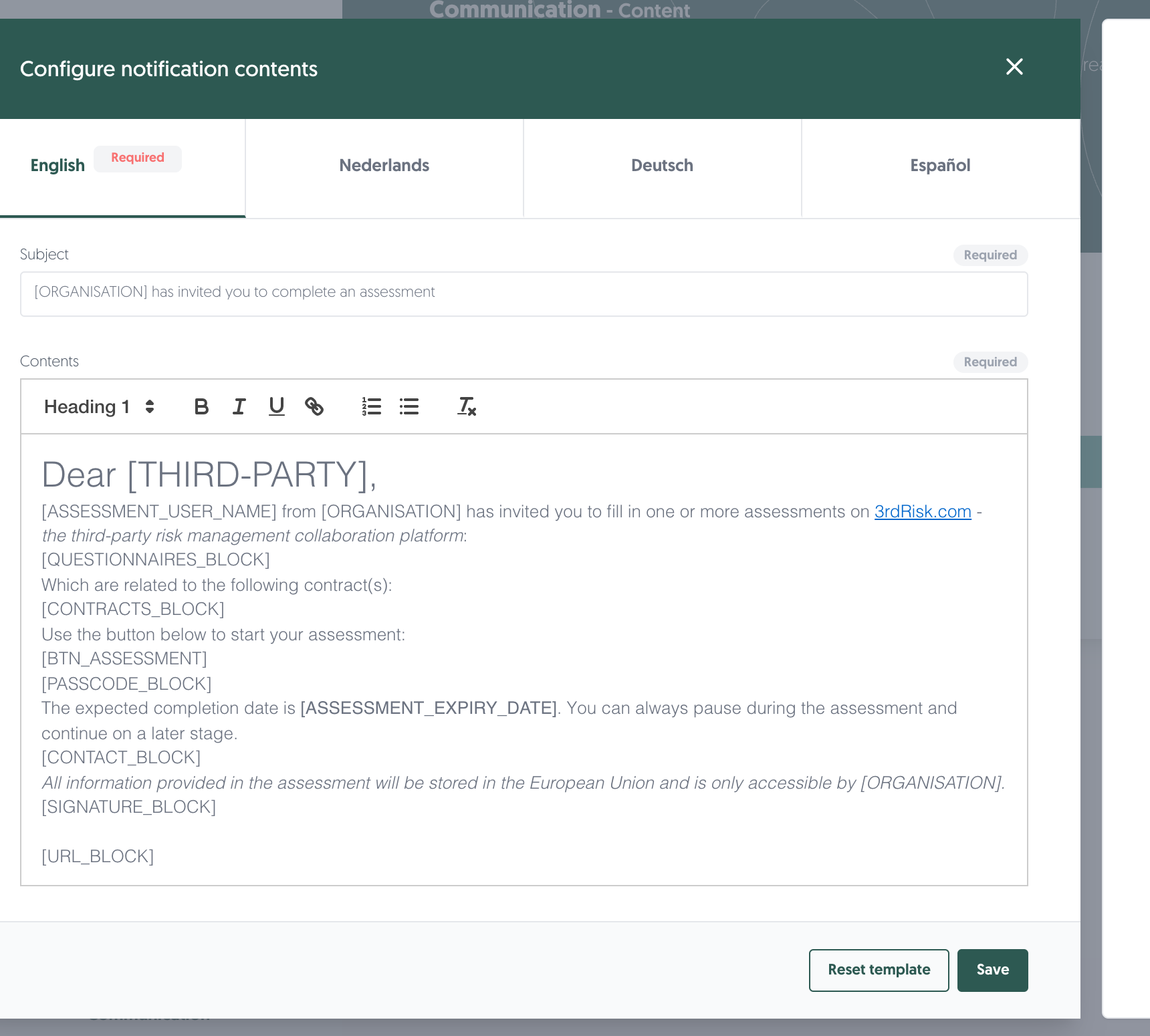
The Contents field is a rich text editor, so you can use headings, bold, italics, underline, links and lists. Subject is a single line of plain text.
Along the top of the editor is one tab per language, with English marked Required. See 4. Languages below.
Preview
The panel on the right shows the message as the recipient will receive it, and updates as you type. Placeholders are filled with example values so you can read the result as a sentence.
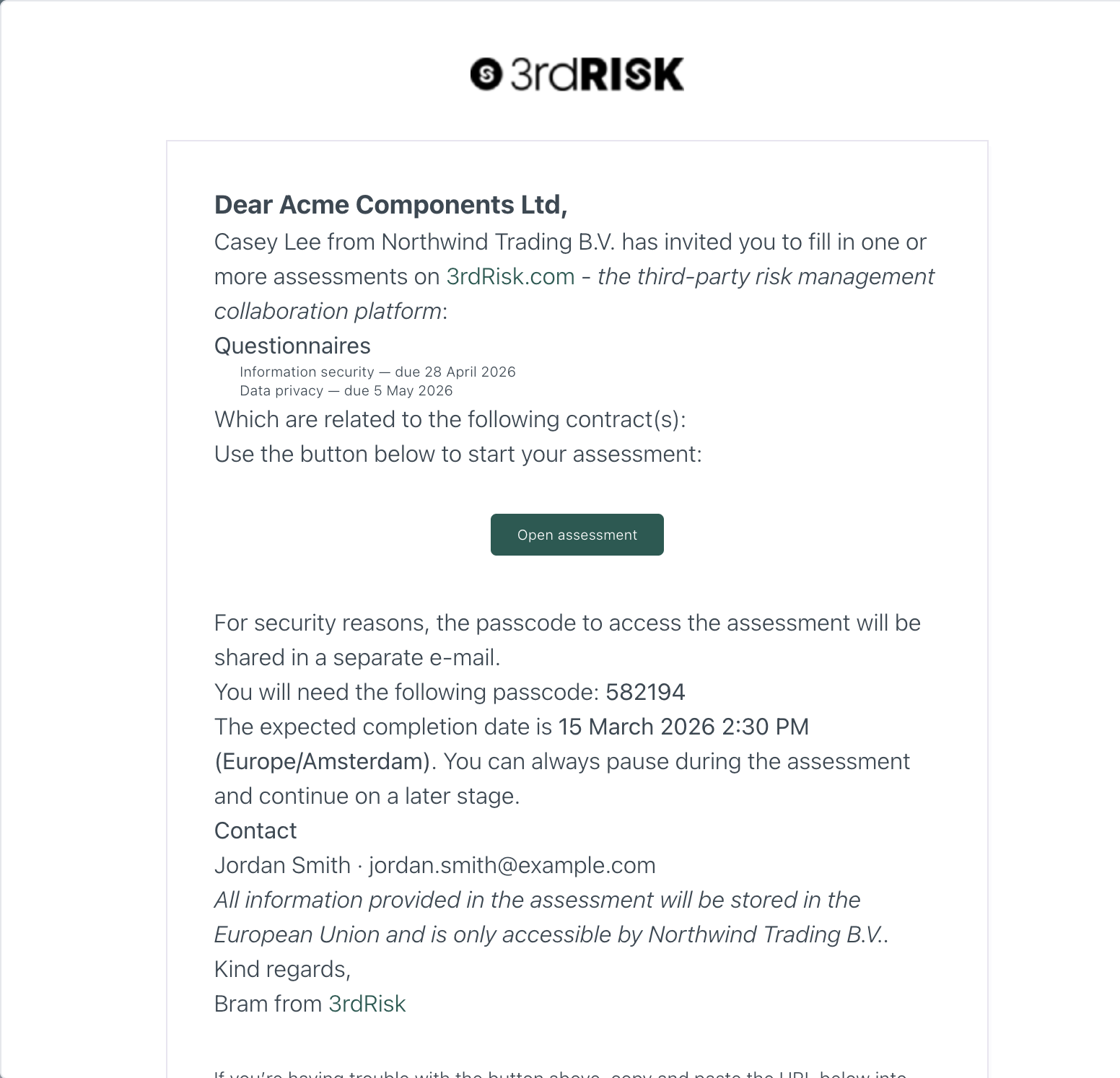
Note: the preview uses example names, dates and reference numbers. The real message uses the details of the actual record.
Placeholders
Placeholders are the parts the platform fills in, such as the name of your organisation or a button linking to the assessment. They are written in square brackets, for example [ORGANISATION].
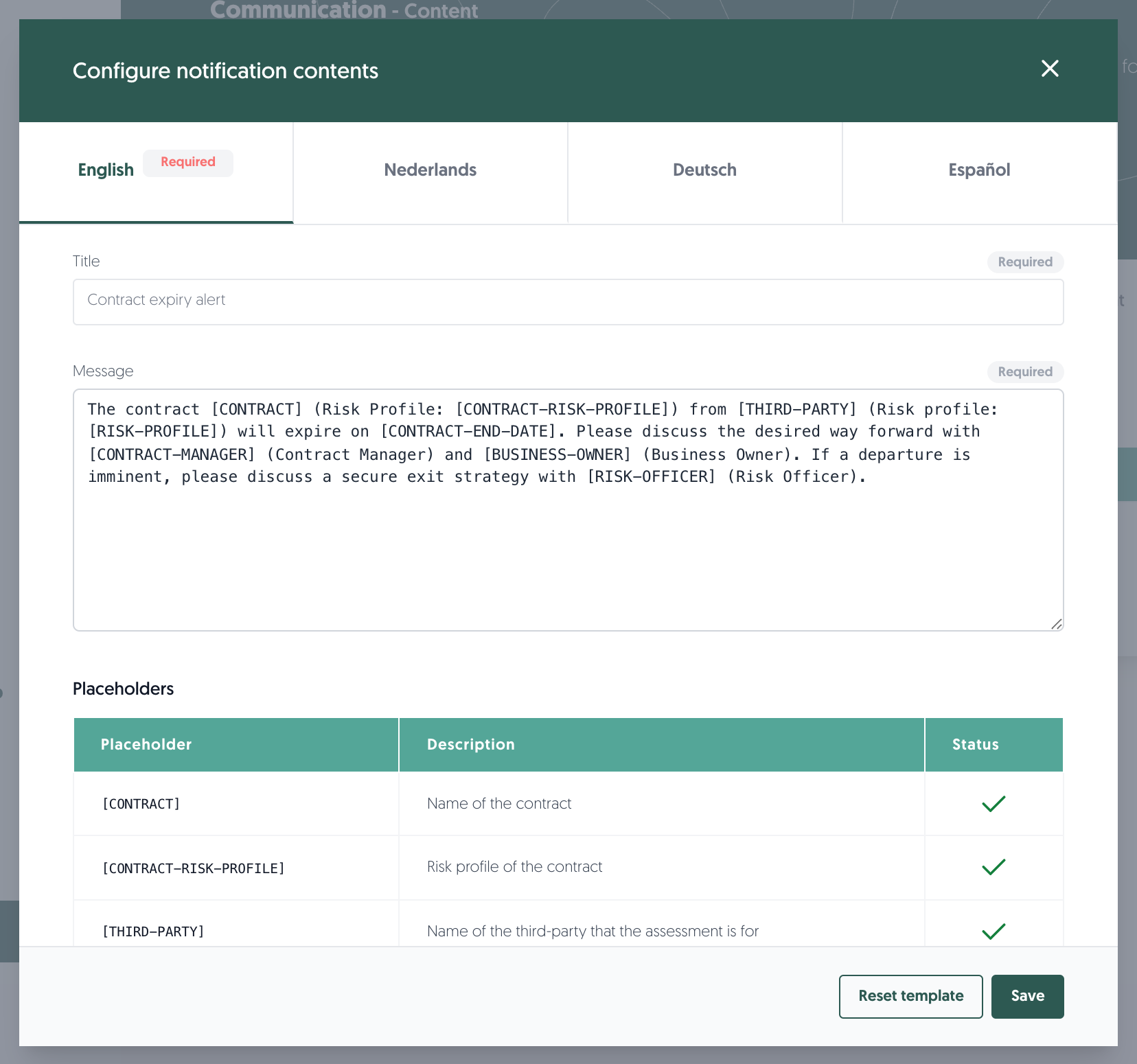
Below the editor is the list of placeholders you can use in this template.
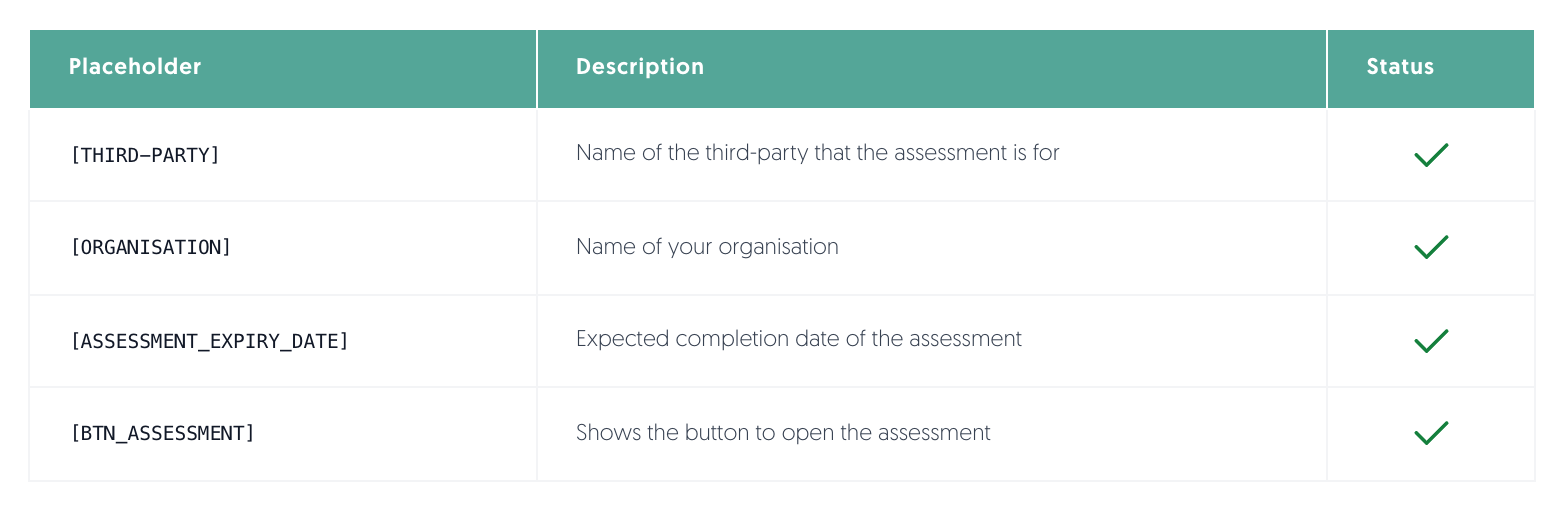
- Placeholder: the text to paste into the subject or the body.
- Description: what the platform fills in.
- Status: a green tick when the placeholder is used, a cross when it is not. A red cross marks a placeholder this template cannot do without.
A required placeholder may sit in either the Subject or the Contents — it does not matter which. If one is missing from both, Save reports an error and nothing is stored.
Note: placeholders are case-sensitive and must keep their square brackets. The easiest way to add one is to copy it from this list.
Global signature
Global signature is a block of text you maintain once and reuse across your e-mails, typically a sign-off and any legal wording your organisation needs.
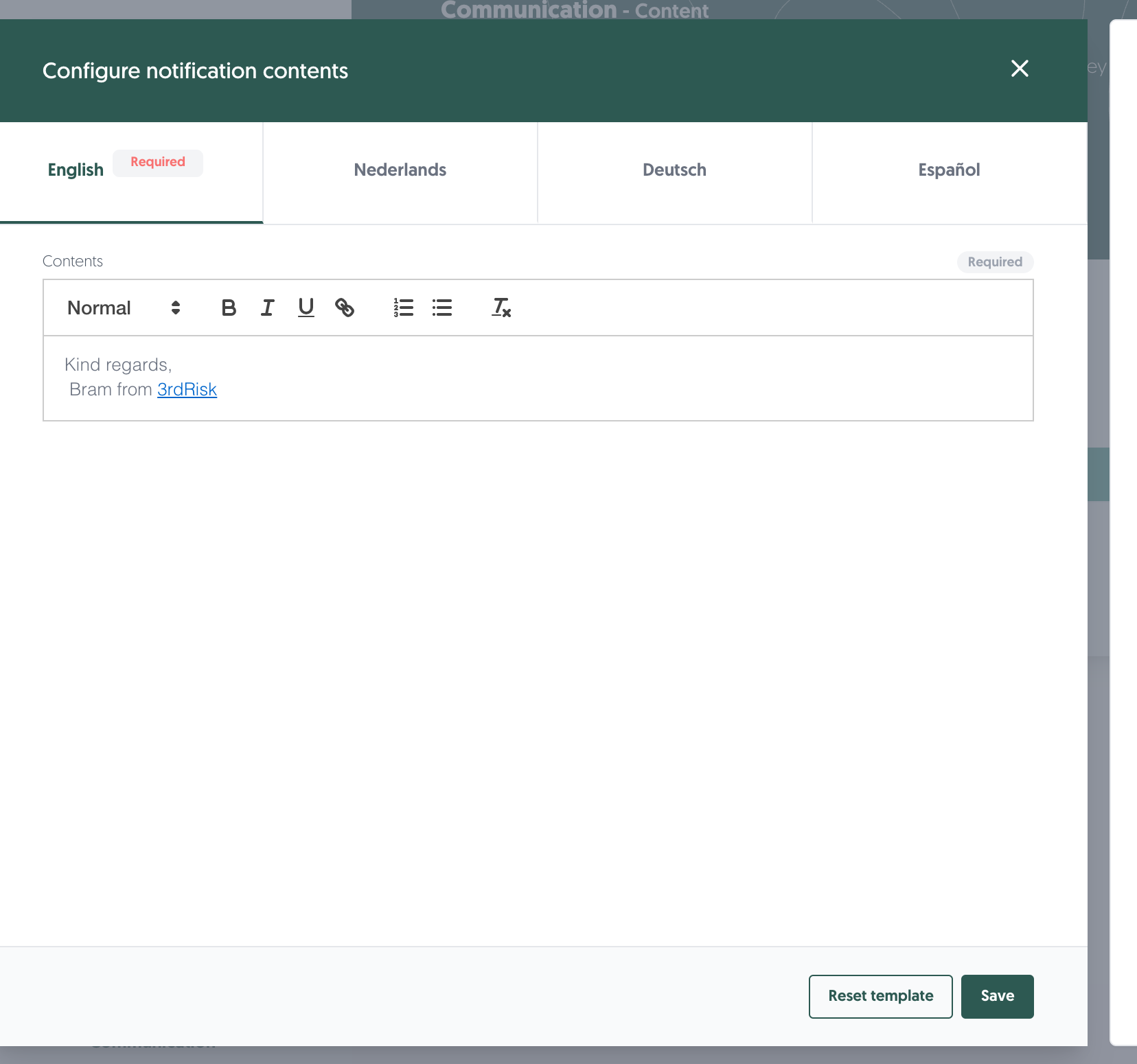
It has no Subject, because it is never sent on its own. To include it in an e-mail, put [SIGNATURE_BLOCK] in that template's Contents.
3. Chat templates (Microsoft Teams and Slack)
The Chat tab holds the messages the platform posts to Microsoft Teams and Slack. Both services receive the same wording, each rendered in its own format.
Editing works as it does for e-mail, with two differences: the fields are Title and Message, and Message is plain text rather than a rich text editor.
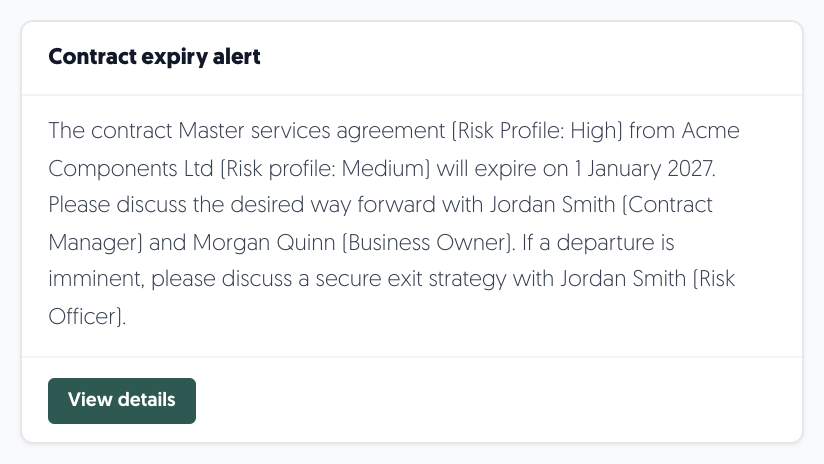
The preview panel shows the message as it will appear in the chat.
Note: these templates only reach anyone once Microsoft Teams or Slack is connected. Setting that up is described in Microsoft Teams. The templates are listed here whether or not a connection exists.
4. Languages
Four languages are available: Nederlands, English, Deutsch and Español. Each has its own tab in the editor.
The platform picks the language per recipient. For a third party, that is the communication language set on the third party; for a colleague, their own language setting.
English is required. You cannot save a template without English wording.
Note: for a language to use your wording, both the subject and the body must be filled in for that language. If either is empty, the platform ignores your version for that language and sends the default wording instead — it does not fall back to your English text. After adding wording in one language, use the No custom template for language filter to find the templates you have not translated yet.
5. Reset, delete, and defaults
Every template has default wording that the platform falls back to whenever you have not supplied your own.
Reset template
Reset template in the editor puts the default wording back into the fields, for the language tab you are currently on only. Your other languages are untouched.
It fills in the fields but does not store anything, so:
- Click on Save to keep the default wording.
- Close the editor without saving to keep what you had.
Delete
Delete on a template row removes your wording and returns the template to its default.
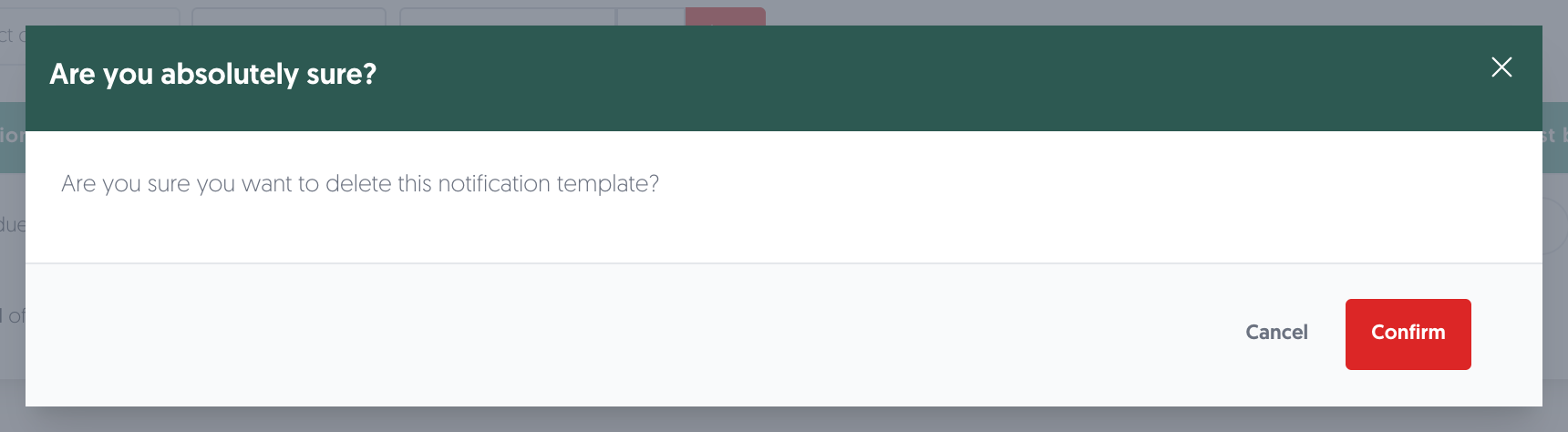
Click on Confirm to continue, or Cancel to keep your version.
Note: this deletes your customisation, not the notification. The message carries on being sent, with its default wording. Deleting removes every language at once, so use Reset template if you only want to restore one.
Who receives each notification
The page does not show who a notification goes to, so the tables below list it. Recipients are fixed by the platform and cannot be changed here.
Notification | Sent to |
|---|---|
Global signature | Not sent on its own - included in other e-mails via [SIGNATURE_BLOCK] |
Import failed | The user concerned |
Password changed | The user concerned |
Password reset | The user who requested the reset |
Two-factor authentication enabled | The third-party contact filling the assessment |
Two-factor authentication disabled | The third-party contact filling the assessment |
Assessment finished (Account holder) | The third-party manager and the assessment's reviewers |
Assessment finished (third-party) | The third-party contact filling the assessment |
Assessment cancelled | The third-party manager and the assessment's reviewers |
Assessment cancelled (third-party) | The third-party contact filling the assessment |
Assessment submitted confirmation (Third party) | The third-party contact filling the assessment |
Assessment ready for review (reviewer) | The assessment's reviewers |
Assessment ready for verification (Verifier) | The assessment's verifiers |
Assessment Started | The third-party contact filling the assessment |
Assessment review comments follow-up (third-party) | The third-party contact filling the assessment |
Assessment completed by secondary user | The third-party contact filling the assessment |
Mention in message | The user concerned |
Assessment reminder (third-party) | The third-party contact filling the assessment |
Assessment passcode | The third-party contact filling the assessment (as a separate e-mail) |
Assessment answers copy (third-party) | The primary third-party contact for the assessment |
Assessment answers copy password (third-party) | The primary third-party contact for the assessment |
External form submission submitted for review | The assessment's reviewers |
External form registration started | The contact on the submission |
External form submission approved | The coordinator of the external form |
External form submission confirmation | The contact on the submission |
Consolidated message mentions | The user concerned |
Download ready | The user who started it |
Download failed | The user who started it |
Import completed | The user concerned |
Third-party screening report request | The requesting user (or the configured report address) |
Assessment overdue (third-party) | The third-party contact filling the assessment |
Assessment overdue (requestor) | The user who requested the assessment |
Assessment moved from verification to review (reviewer) | The assessment's reviewers |
Secondary assessment user invite | The third-party contact filling the assessment |
External form - Additional information requested | The contact on the submission |
Organisation element assessment review requested | The assessment's reviewers |
Organisation element assessment review reminder (30 days) | The reviewer of the organisation element |
Organisation element assessment review reminder (7 days) | The reviewer of the organisation element |
Organisation element assessment review reminder (due today) | The reviewer of the organisation element |
Residual risk acceptance request | The user concerned |
External form workflow completed | The coordinator of the external form |
Residual risk accepted | The owner of the risk |
Residual risk denied | The owner of the risk |
Document signed by a signer | The user who sent the document for signing |
Document signing completed | The user who sent the document for signing |
Contract due date | The contract manager and the contract owner |
Contract notice deadline | The contract manager and the contract owner |
Control assessment batch - will start soon | The roles selected on the scheduled-notification definition |
Control assessment batch - has started | The roles selected on the scheduled-notification definition |
Control assessment batch - reminder | The roles selected on the scheduled-notification definition |
Control assessment batch - reminder (tomorrow) | The roles selected on the scheduled-notification definition |
Control assessment batch - testing deadline | The roles selected on the scheduled-notification definition |
Control assessment batch - testing deadline passed | The roles selected on the scheduled-notification definition |
Control assessment batch - validation deadline | The roles selected on the scheduled-notification definition |
Control assessment batch - validation deadline passed | The roles selected on the scheduled-notification definition |
Control assessment batch - validation has started | The roles selected on the scheduled-notification definition |
User invite | The invited user |
User invite (SSO) | The invited user |
User invite (API) | The invited user |
User invite (SSO via API) | The invited user |
Chat
Notification | Sent to |
|---|---|
Control owner assigned | The newly assigned control owner |
Control auditor assigned | The newly assigned control auditor |
Control executor assigned | The newly assigned control executor |
Control validator assigned | The newly assigned control validator |
Catalogue owner assigned | The owner of the third party |
Catalogue next review date alert | The owner of the third party |
Catalogue risk profile wizard alert | The owner of the third party |
Contract owner assigned | The owner of the contract |
Contract due date | The contract manager and the contract owner |
Contract notice deadline | The contract manager and the contract owner |
Contract risk profile wizard | The owner of the contract |
Contract security review required | The risk officer of the contract |
Third-party report received | Not currently sent - no code dispatches this template |
Third-party report requested | The user who made the request |
Risk register officer assigned | The risk officer of the risk |
Risk register officer closed | The risk officer of the risk |
Risk register officer updated | The risk officer of the risk |
Risk register owner assigned | The owner of the risk |
Risk register owner closed | The owner of the risk |
Risk register owner updated | The owner of the risk |
Residual risk acceptance request | The user concerned |
Action plan owner assigned | The owner of the action plan |
Action plan owner closed | The owner of the action plan |
Action plan owner reopened | The owner of the action plan |
Action plan owner updated | The owner of the action plan |
Action plan owner re-evaluation due | The owner of the action plan |
Action plan person to act assigned | The person to act on the action plan |
Action plan person to act closed | The person to act on the action plan |
Action plan person to act reopened | The person to act on the action plan |
Action plan person to act updated | The person to act on the action plan |
Action plan person to act re-evaluation due | The person to act on the action plan |
Action plan person to act re-evaluation exceeded | Not currently sent - no code dispatches this template |
Action plan issue owner assigned | The owner of the issue |
Action plan issue owner closed | The owner of the issue |
Action plan issue owner reopened | The owner of the issue |
Action plan issue owner updated | The owner of the issue |
Action plan issue owner re-evaluation exceeded | The owner of the issue |
Action plan issue officer assigned | The risk officer of the issue |
Action plan issue officer closed | The risk officer of the issue |
Action plan issue officer reopened | The risk officer of the issue |
Action plan issue officer updated | The risk officer of the issue |
Action plan issue officer re-evaluation due | The risk officer of the issue |
Action plan issue officer re-evaluation exceeded | The risk officer of the issue |
Issue owner assigned | The owner of the issue |
Issue owner closed | The owner of the issue |
Issue owner reopened | The owner of the issue |
Issue owner updated | The owner of the issue |
Issue owner re-evaluation due | The owner of the issue |
Issue owner re-evaluation exceeded | The owner of the issue |
Issue officer assigned | The risk officer of the issue |
Issue officer closed | The risk officer of the issue |
Issue officer reopened | The risk officer of the issue |
Issue officer updated | The risk officer of the issue |
Issue officer re-evaluation due | The risk officer of the issue |
Issue officer re-evaluation exceeded | The risk officer of the issue |
Assessment finished (contract owner) | The owner of the contract |
Assessment cancelled (initiator) | The user who initiated the assessment |
Assessment due date (initiator) | The user who initiated the assessment |
Assessment due date reminder (initiator) | The user who initiated the assessment |
Assessment due date extension request | The user who initiated the assessment |
Assessment due date extended | The user who initiated the assessment |
Assessment due date extension denied | The user who initiated the assessment |
Assessment cancelled (officer) | The risk officer of the third party |
Assessment finished (officer) | The risk officer of the third party |
Assessment ready for review | The assessment's reviewers |
Assessment ready for verification | The assessment's verifiers |
Control assessment negative result (owners) | The owner of each linked risk |
Control assessment negative result (risk officers) | The risk officer of each linked risk |
Control assessment pushed to next status | All stakeholders of the control assessment |
Control assessment finished | All stakeholders of the control assessment |
Control assessment testing started | All stakeholders in the testing phase |
Control assessment testing to validation (first) | All stakeholders in the validation phase |
Control assessment testing to validation (resubmitted) | The most recent validator |
Control assessment validation pushback to testing | All stakeholders in the testing phase |
Control assessment validation to verification (first) | All stakeholders in the verification phase |
Control assessment validation to verification (resubmitted) | All stakeholders in the verification phase |
Control assessment re-opened | All stakeholders of the control assessment |
Control assessment verification pushback to validation | The most recent validator |
Control assessment testing due (tester) | All stakeholders in the testing phase |
Control assessment testing due (validator) | All stakeholders in the validation phase |
Control assessment validation due (auditor) | All stakeholders in the verification phase |
Control assessment validation due (validator) | All stakeholders in the validation phase |
Control assessment verification due | All stakeholders in the verification phase |
Permissions needed
Permissions needed: Notification templates — Read to open the page, Update to change a template, Create to add one, and Delete to remove a customisation.
To grant it, navigate to: Left menu: Configuration, then Roles, open the role, and set the Notification templates permissions. Managing roles is described in Users.
A user with only Read sees the page and can open a template with View, but cannot change it.
Known limitations
- Every template is listed, including modules you do not use. The list is not filtered by your subscription, so you may see templates for features your organisation has not enabled. Customising one of those has no effect until the feature is in use.
- Three notifications share their wording between Mail and Chat. Contract due date, Contract notice deadline and Residual risk acceptance request exist on both tabs. Because of a known issue the e-mail can pick up the wording from the chat version. If you customise one of these, check the other tab as well, and let us know if the e-mail does not read as you expect.
- Two chat templates are listed but not currently sent: Third-party report received and Action plan person to act re-evaluation exceeded. Customising them has no effect for now.
- Assignment messages are not sent to you when you assign yourself. Assigning a control to yourself, for example, sends no message.
- Not every Microsoft Teams or Slack message is editable here. A small number of messages, such as the organisation element review reminders, are sent outside this list and keep their built-in wording.
- The layout of e-mails is not editable here. Colours, logo and overall styling come from your branding. See Custom branding.
- There is no version history. Once you save, the previous wording is not recoverable, though Reset template always brings back the platform default.