
Tags management
Tags let you attach your own labels to records across 3rdRisk, so you can search, filter, and report on groups of records that belong together. For example, you can tag every risk that relates to business continuity with "BCM", or every framework that is part of your ISO 27001 ISMS with "ISMS", and pull them up as a set whenever you need them.
Until now, tags could only be added while editing an individual record. That made it easy to end up with near-duplicates such as "BCM", "bcm" and "Business continuity", with no way to tidy them up. The Tags management page brings all your tags together in one place, so you can create them up front, rename them, see exactly where each one is used, and clean up the ones you no longer need.
Overview
You can find tags management by navigating to: Left menu: Configuration, then Tags management.
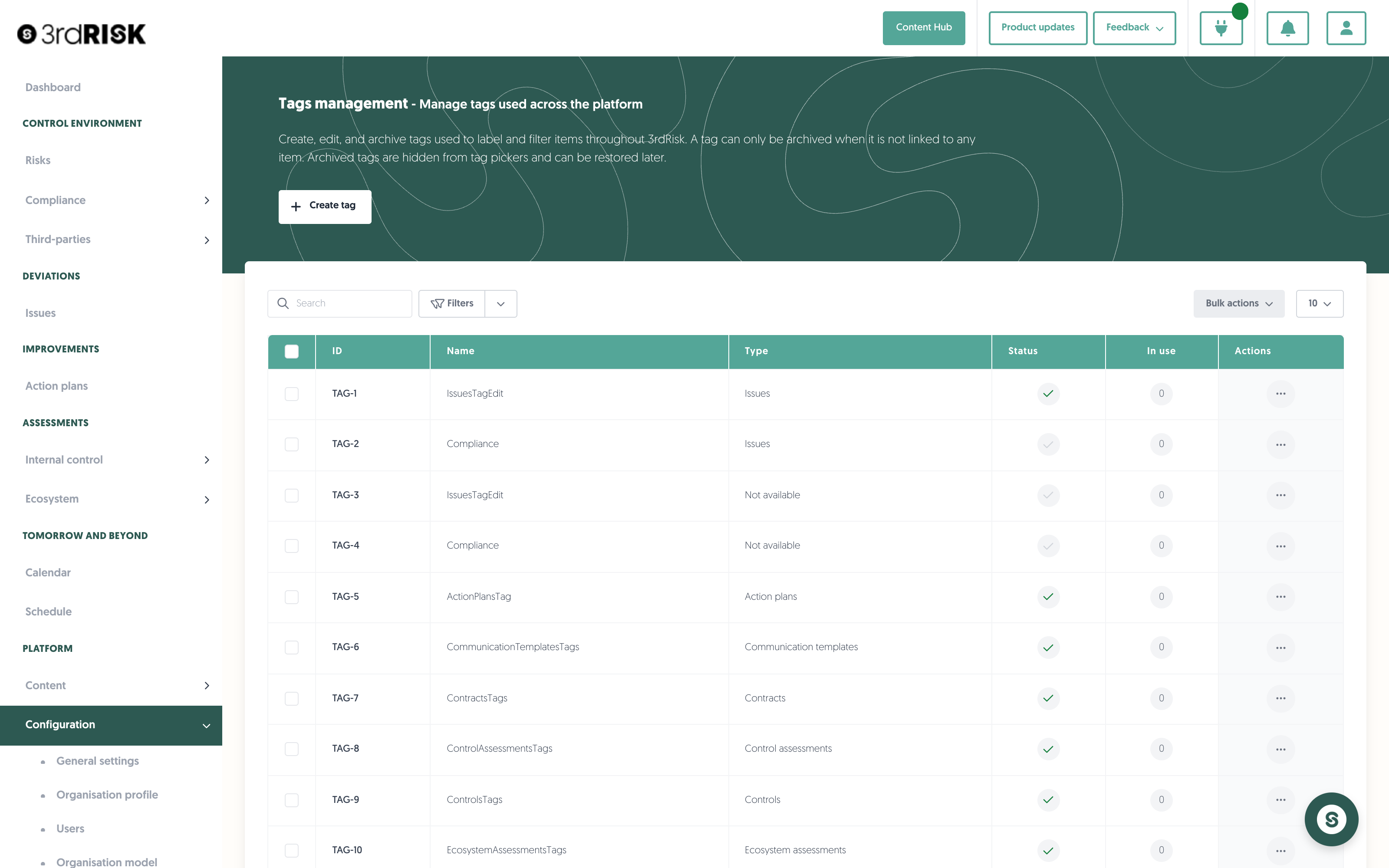
Tag governance in the platform is built on three principles:
- Every tag belongs to a type. A type is the module or context the tag is used in, such as Issues or Contracts. Tags are managed per type, so a tag is only offered in the module it belongs to.
- Tags are never deleted. Tags you no longer need are archived, which keeps your audit trail and history intact. Archived tags are hidden from tag pickers and filters, and can be restored at any time.
- A tag that is still in use cannot be archived. This protects every record that depends on it. If you want to archive a tag that is still attached to records, detach it first.
Tag types
The type determines in which module a tag is offered. Tags with the same name can exist in different types, and they are managed separately: an Issue tag named "GDPR" and a Contract tag named "GDPR" are two different tags.
The following types are available:
- Action plans
- Communication templates
- Contracts
- Control assessments
- Controls
- Ecosystem assessments
- Frameworks
- Framework sections
- Issues
- News categories
- Organisation entities
- Organisation industry
- Organisation services and products
- Risk register
- Risk register external parties
- Risk register internal stakeholders
- Third parties
A type is required when you create a tag, so every tag you add from this page belongs to exactly one type.
Note: you may also come across types marked as (legacy). These originate from earlier versions of the platform and can still hold tags, so you can find and clean them up here. We recommend not creating new tags for these types. A tag that was created outside this page may have no type at all and shows Not available; you can rename or archive it here like any other tag.
Create tag
- At the top of the page, you can create a new tag: + Create tag.
To create a new tag:
- Navigate to: Left menu: Configuration, then Tags management.
- Click on + Create tag.
- Select the Type the tag belongs to and enter the tag Name.
- Click on Save.
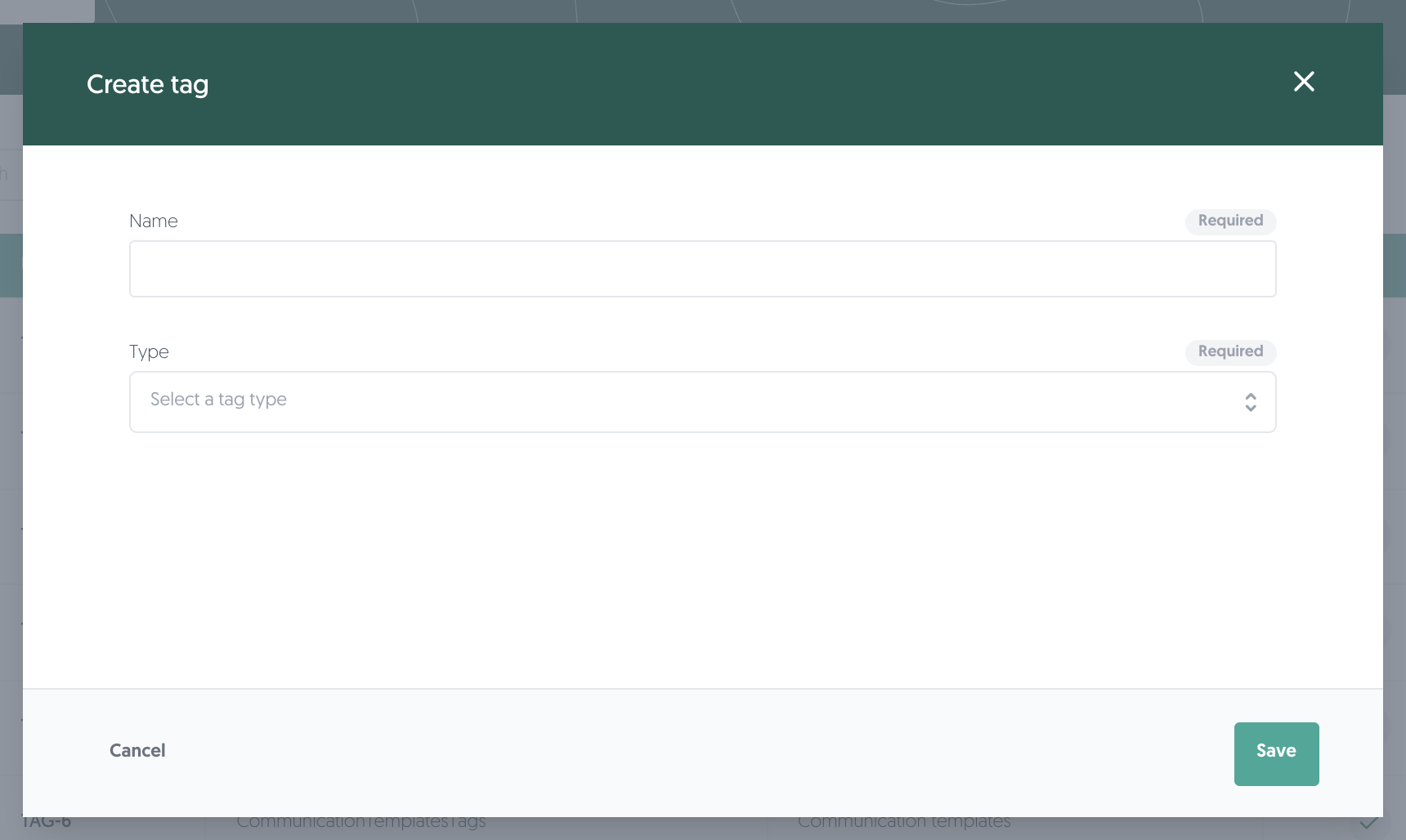
The tag is now available in the tag picker of the corresponding module, so your colleagues can select it instead of typing a new variation of it.
Note: tag names are unique within a type. If a tag with the same name already exists for the selected type, the platform tells you and no duplicate is created.
Table
The tags table gives you a detailed overview of all your tags, including the type they belong to, their status, and the number of items they are currently used on.
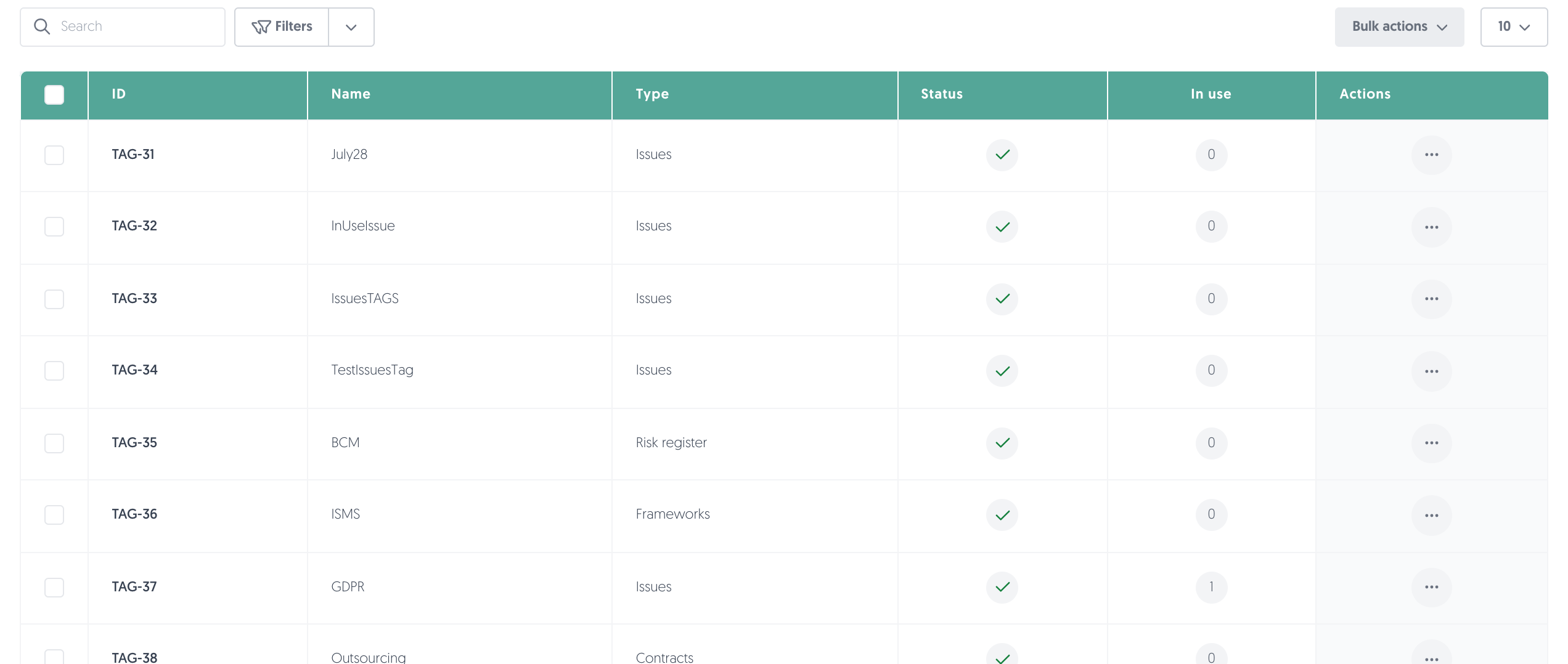
- ID: the unique reference of the tag (for example TAG-14). You can search on it.
- Name: the label as it appears in tag pickers and filters throughout the platform.
- Type: the module or context the tag belongs to. Hover over the value to see the underlying technical type.
- Status: whether the tag is active or archived.
- In use: the number of items the tag is currently attached to. Click on the number to open the related module filtered on that tag, so you can see exactly which records use it.
Search and filter
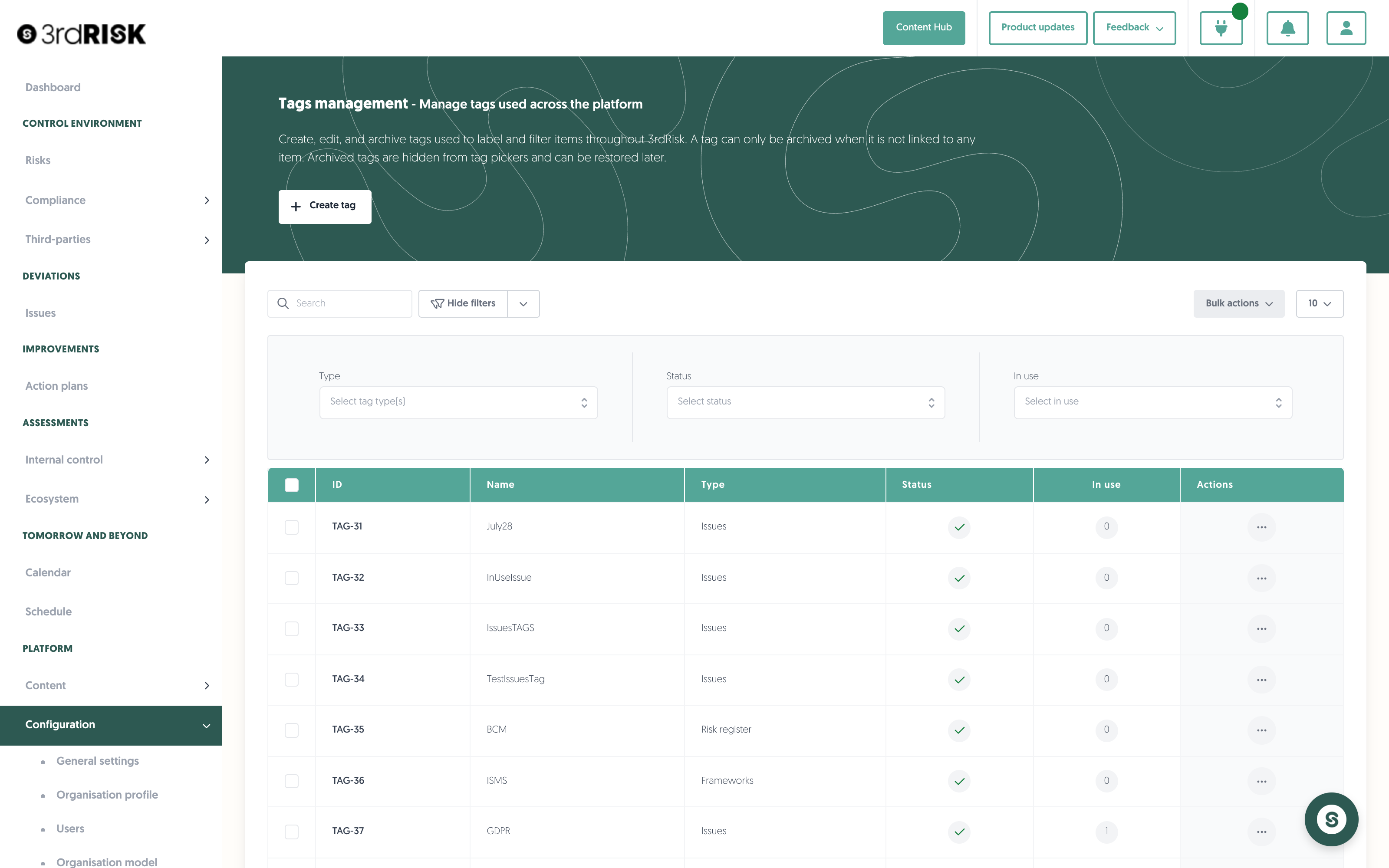
Above the table, you will find options to search and filter. From left to right:
- Search: You can search by tag name and ID.
- Clear search: Quickly clear your search field and stop searching using this button.
- Filters: Apply filters using this button. If any filters are active, the text will change to Filters applied. You can filter on:
- Type: one or more tag types.
- Status: Active or Archived. Archived tags are hidden until you filter on them.
- In use: In use or Not in use. Filter on Not in use to find the tags you can safely clean up.
- Saved filters (↓ down arrow): You will find your saved filter sets here, as well as a button to save your current set of filters.
- Clear filters (strikethrough funnel): This will clear all filters, including any text in the search field.
- Number of rows per page: Choose the amount of rows you want displayed per page in the table.
Interacting with the table
- Select: Check the box in the leftmost column to select a row. Selecting one or more rows makes the bulk actions available.
- Details: Hover or click on a data field to get more details.
Actions
You'll find the actions menu (•••) on the right side of each row. Available actions include:
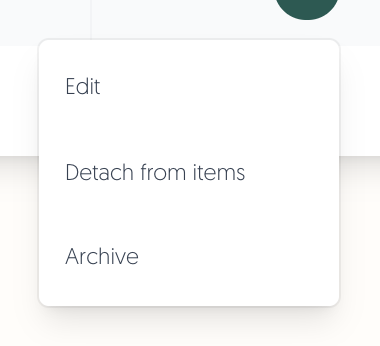
- Edit: Rename the tag.
Learn more about renaming: Rename a tag - Detach from items: Remove the tag from every record it is currently attached to, without removing the tag itself. This action is only shown when the tag is in use.
Learn more about detaching: Detach a tag from items - Archive: Open the Archive tag window to take the tag out of circulation, so the tag is no longer offered in tag pickers and filters. The action is always listed; the window itself shows whether the tag can actually be archived.
Learn more about archiving: Archive a tag - Restore: Make an archived tag available again. This action is shown for archived tags.
Rename a tag
To rename a tag:
- Navigate to: Left menu: Configuration, then Tags management.
- For the tag you would like to rename, click on the ••• button in the Actions column on the right-hand side of the table.
- Click on Edit.
- Update the Name.
- Click on Save.
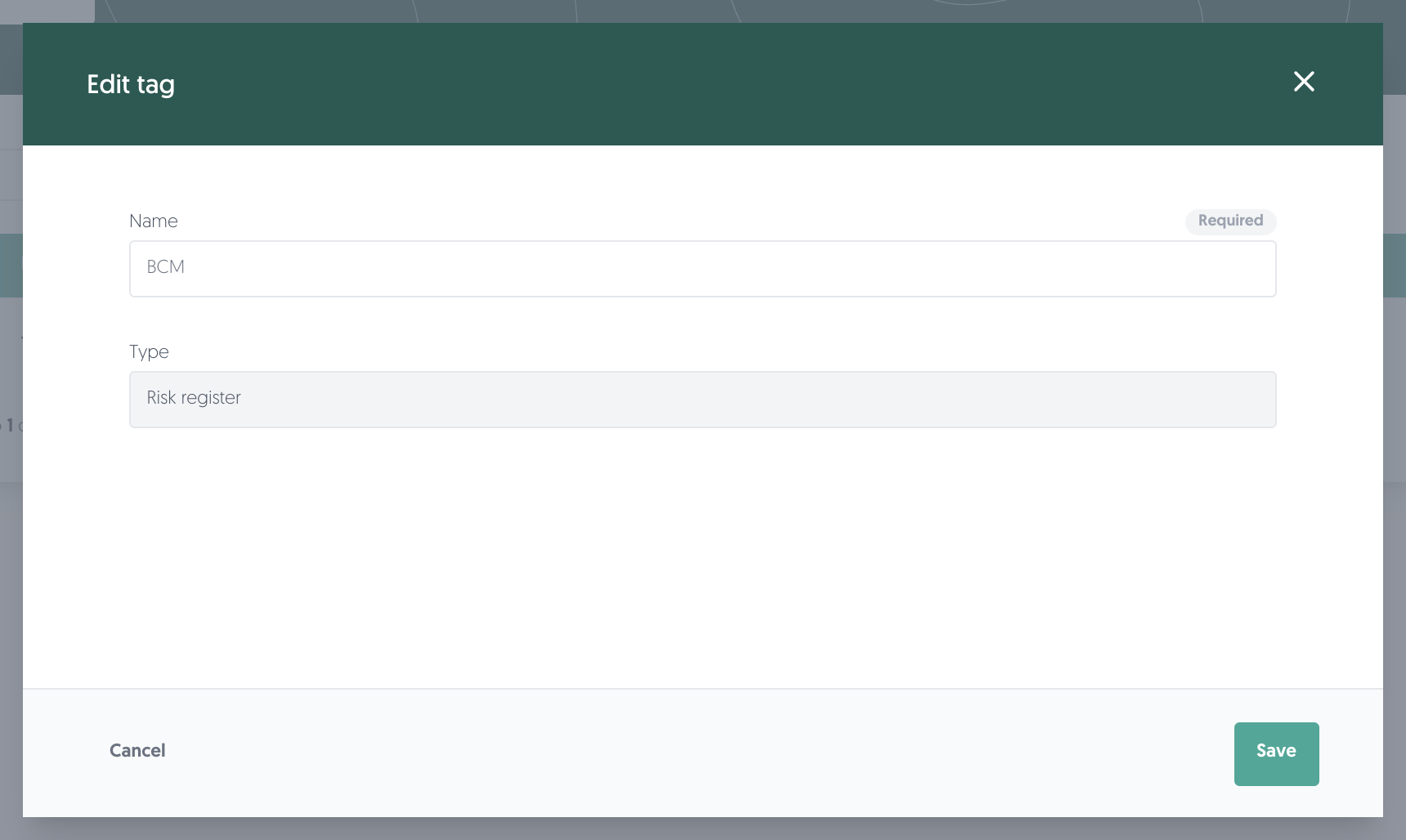
Renaming applies everywhere at once. Every record that carries the tag keeps it and immediately shows the new name, so you can correct spelling or align naming without losing a single link.
Detach a tag from items
Detaching removes the tag from the records it is attached to, but keeps the tag itself available for future use. This is the step to take when you want to archive a tag that is still in use.
To detach a single tag:
- Navigate to: Left menu: Configuration, then Tags management.
- For the tag you would like to detach, click on the ••• button in the Actions column on the right-hand side of the table.
- Click on Detach from items.
- Confirm in the window that appears. It states from how many items the tag will be detached.
To detach several tags at once:
- Select the tags using the checkboxes in the leftmost column of the table.
- Click on the bulk action Detach from items.
- Confirm in the window that appears.
The In use count drops to 0 as soon as the action completes. For larger numbers of records the platform processes the detach in the background; you will be notified when it is finished.
Note: detaching cannot be undone. The tag is removed from all related records, and re-attaching it means tagging those records again.
Archive a tag
Archiving takes a tag out of circulation without deleting it. Archived tags no longer appear in tag pickers and filters, so nobody can select them on new records, while the tag and its history remain available.
To archive a tag:
- Navigate to: Left menu: Configuration, then Tags management.
- For the tag you would like to archive, click on the ••• button in the Actions column on the right-hand side of the table.
- Click on Archive. The Archive tag window opens.
- Optionally, record a Reason for archiving.
- Check Related items. In use needs a green check mark before the tag can be archived.
- Click on Archive.
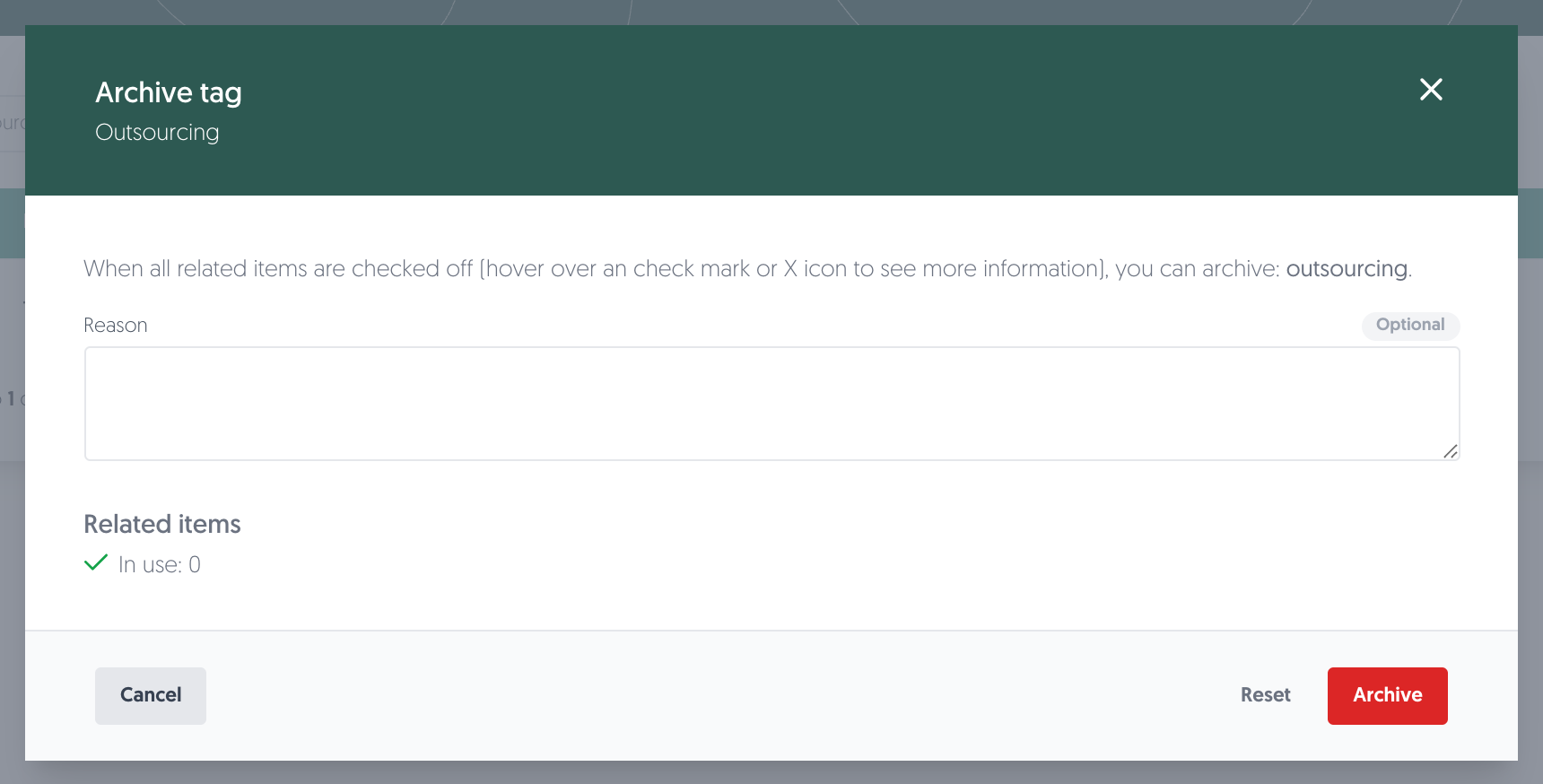
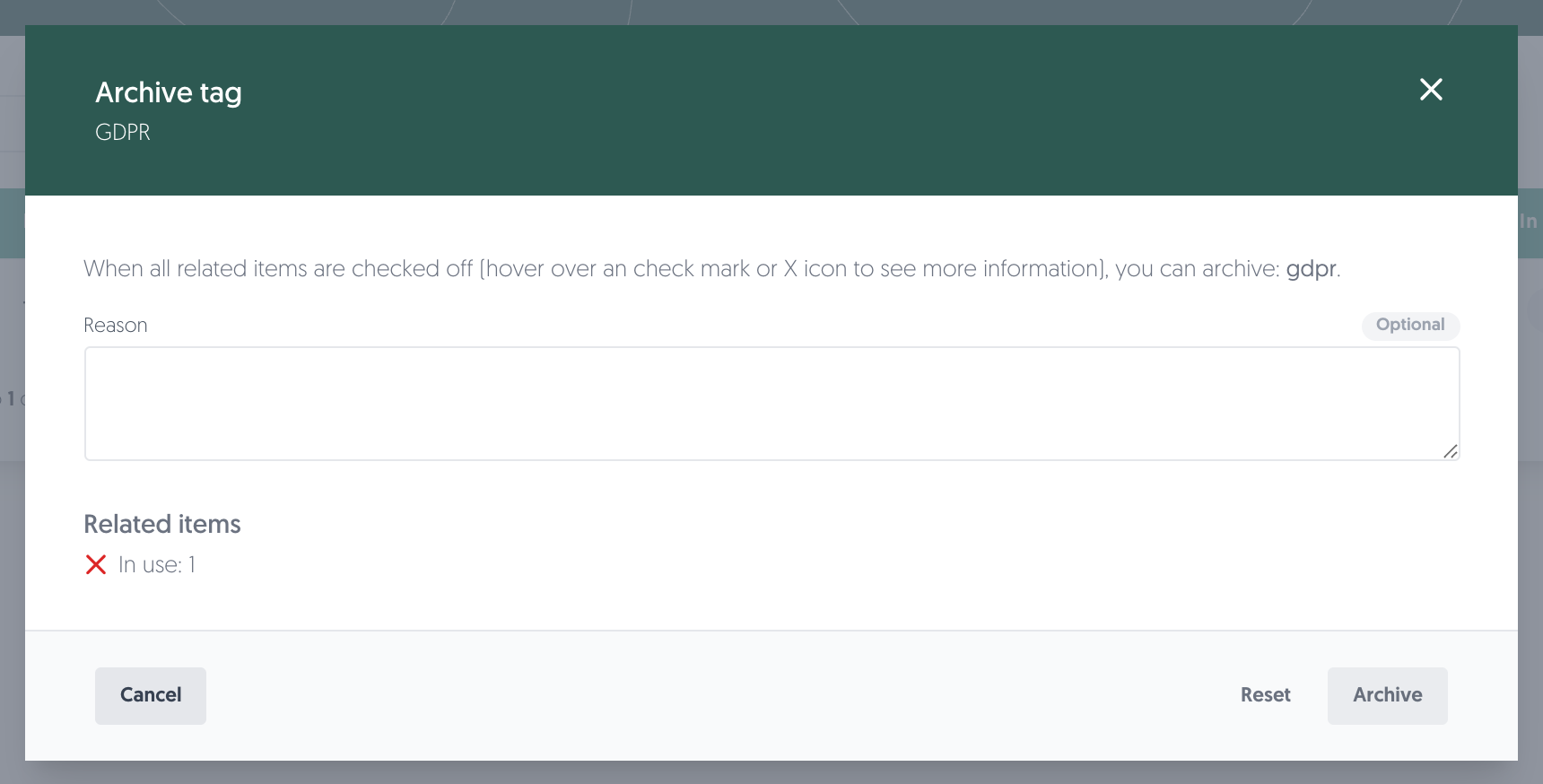
If the tag is still attached to one or more records, Related items shows a red cross with the number of items involved and the Archive button stays disabled. Use Detach from items first, or remove the tag from those records, and try again.
To find the tags you can archive, filter the table on In use: Not in use.
Restore an archived tag
To restore an archived tag:
- Navigate to: Left menu: Configuration, then Tags management.
- Filter the table on Status: Archived.
- For the tag you would like to restore, click on the ••• button in the Actions column on the right-hand side of the table.
- Click on Restore.
The tag is immediately available again in the tag pickers and filters of its type.
Permissions
Permissions needed: you need the Tags management permission to open this page and to work with tags on it. The Administrator ecosystem role has this permission by default.
To grant the permission to another role, navigate to: Left menu: Configuration, then Roles, edit the role, and enable Tags management. The permission covers the create, read, update, archive, and delete operations separately, so you can, for example, allow a role to create and rename tags without allowing it to archive them.
Users without this permission do not see the Tags management menu item and cannot reach the page. Tags they are allowed to select on records continue to work as before.
Learn more about roles and permissions: Roles
Known limitations
- Tags cannot be merged. To consolidate two tags that mean the same thing, tag the relevant records with the tag you want to keep, then detach and archive the other one.
- Tags cannot be moved between types. If a tag was created for the wrong type, create it again for the correct type and archive the original.
- Tags cannot be permanently deleted from this page. This is deliberate: it keeps the history of every record that ever carried the tag intact.