
AI Document Analyser
To access the AI document analyzer:
Navigate to Assessments → Ecosystem → Review → Action menu → Review assessment
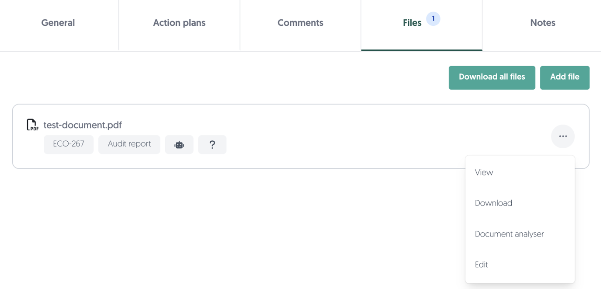
From there you can open any question and add your file or review documents uploaded by the third-party. After the file is added, click the three dots and select “Document analyser”.
Supported File Types: As of now, only PDFs are supported.
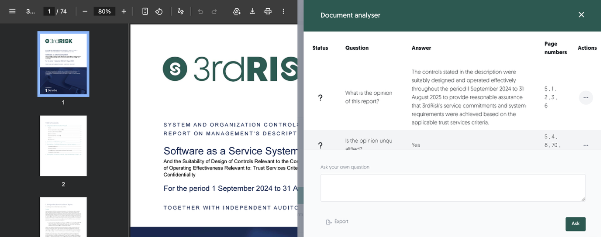
On the left side, you will see the file viewer. On the right side, you will see a modal with a virtual officer prompting you to select a question set. You can either select a question set or start manually asking questions via the “Ask your own question” text box. After you’ve completed the document analysis, you are able to export everything via the “Export” button located at the bottom of the modal.
Permissions needed: You will need the “Ai settings” permission to be able to access the Ai question sets. To enable this permission, navigate to, Configuration → Roles → Edit a role → Enable “Ai settings” permission.


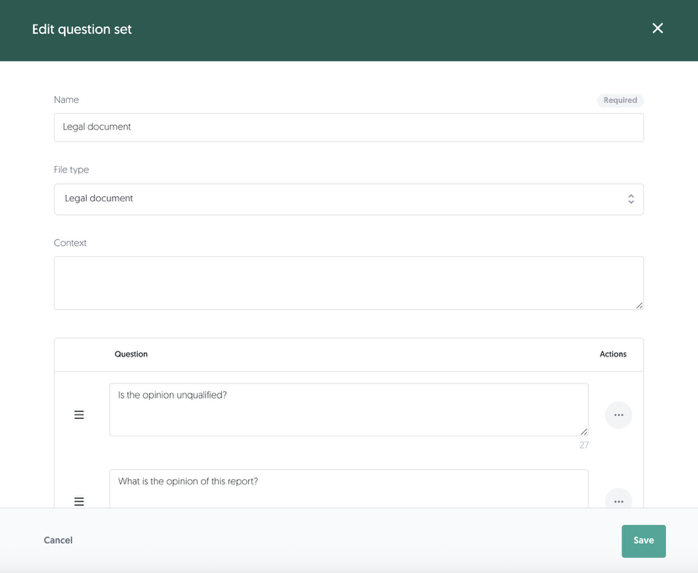
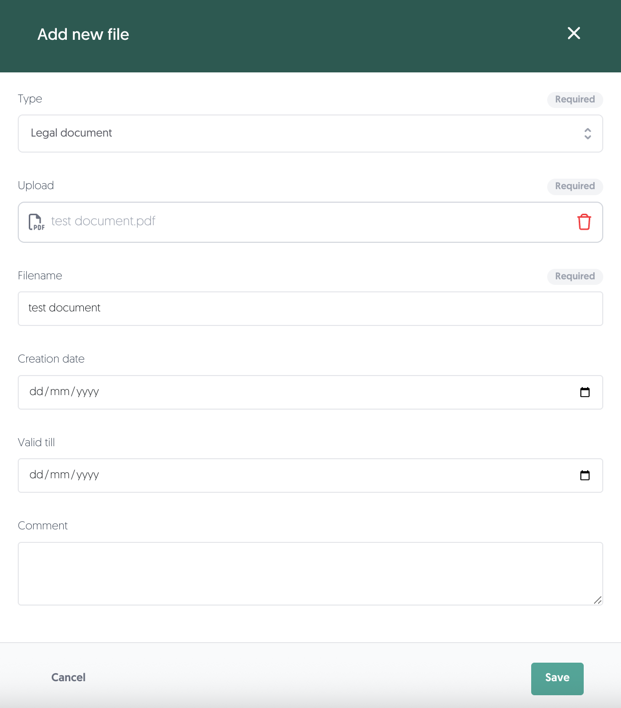
Question sets: Question sets can be configured and created by going to Platform → Configuration → AI → Ai question sets. You can choose a question set or ask your own questions. When creating a question set, you can select a file type. Similarly, when uploading a file to a question, you can also choose a file type. This simplifies selecting a question set, as sets matching the uploaded file’s type are prioritized at the top of the list.
Example: If you select “Agreement” as the file type when uploading a file, question sets with the “Agreement” file type will appear at the top of the list when selecting a question set.
After choosing a question set, or asking your won questions, you will see the following columns:
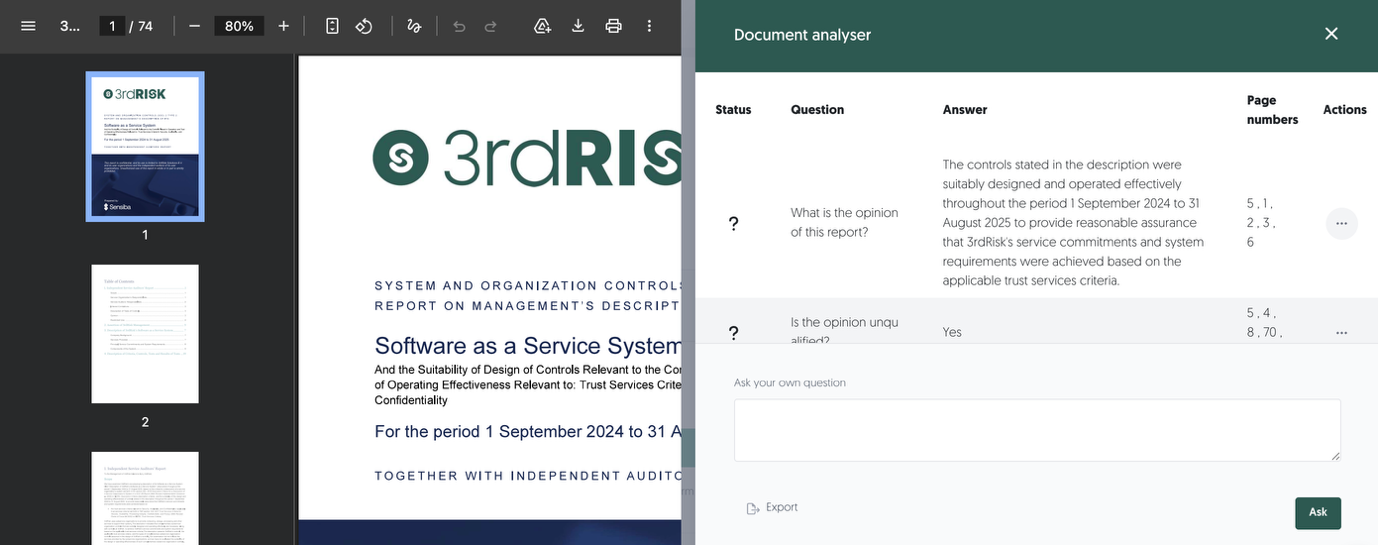
Status: This is the satus of the question; it will be “?” if no action was taken for the question. A “✓” will be shown if the answer was a approved. A “×” will be shown if the answer was rejected.
Question: These are the questions from the question set you’ve chosen.
Answer: These are the answers that the Ai has generated based off the uploaded document. These answers can be edited by clicking “Edit” in the actions menu.
Page numbers: This column shows you the pages in the document that the AI used as reference to answer certain questions. Simply click one of the numbers to be taken to that page in the document on the left side of the modal.
Actions: In the actions menu, you can:
- Edit an answer
- Approve an answer
- Reject an answer
- Create a new action plan for a question/answer
- Delete a question
Please note: The information provided is for guidance only and should not replace your own due diligence. You remain fully responsible for verifying the accuracy and relevance of this information before making any decisions. 3rdRisk accepts no liability for actions taken solely based on this AI-generated content.