Create a Microsoft Teams bot
The virtual officer reaches your colleagues in Microsoft Teams through a bot that your organisation owns. You create the bot once in the Developer Portal for Teams, connect it to Teams, and share its details with 3rdRisk. From then on, every colleague who adds the app in Teams can connect their 3rdRisk account and receive notifications there.
Most of this article is written for the Microsoft 365 administrator who sets the bot up. Colleagues who only want to add the app in Teams can go straight to Connect an account below.
Benefits
Microsoft Teams is Microsoft's messaging app for organisations. Connecting it to 3rdRisk gives you:
- Notifications from the virtual officer in a personal chat in Teams, for example when you are assigned a control, a risk or an issue, or when a due date or a review comes up.
- Actions straight from the message. Some messages carry a button, for example Send reminder when an assessment you started reaches its due date in 7 days.
Learn more about which chat messages go to whom: Communication templates
Overview
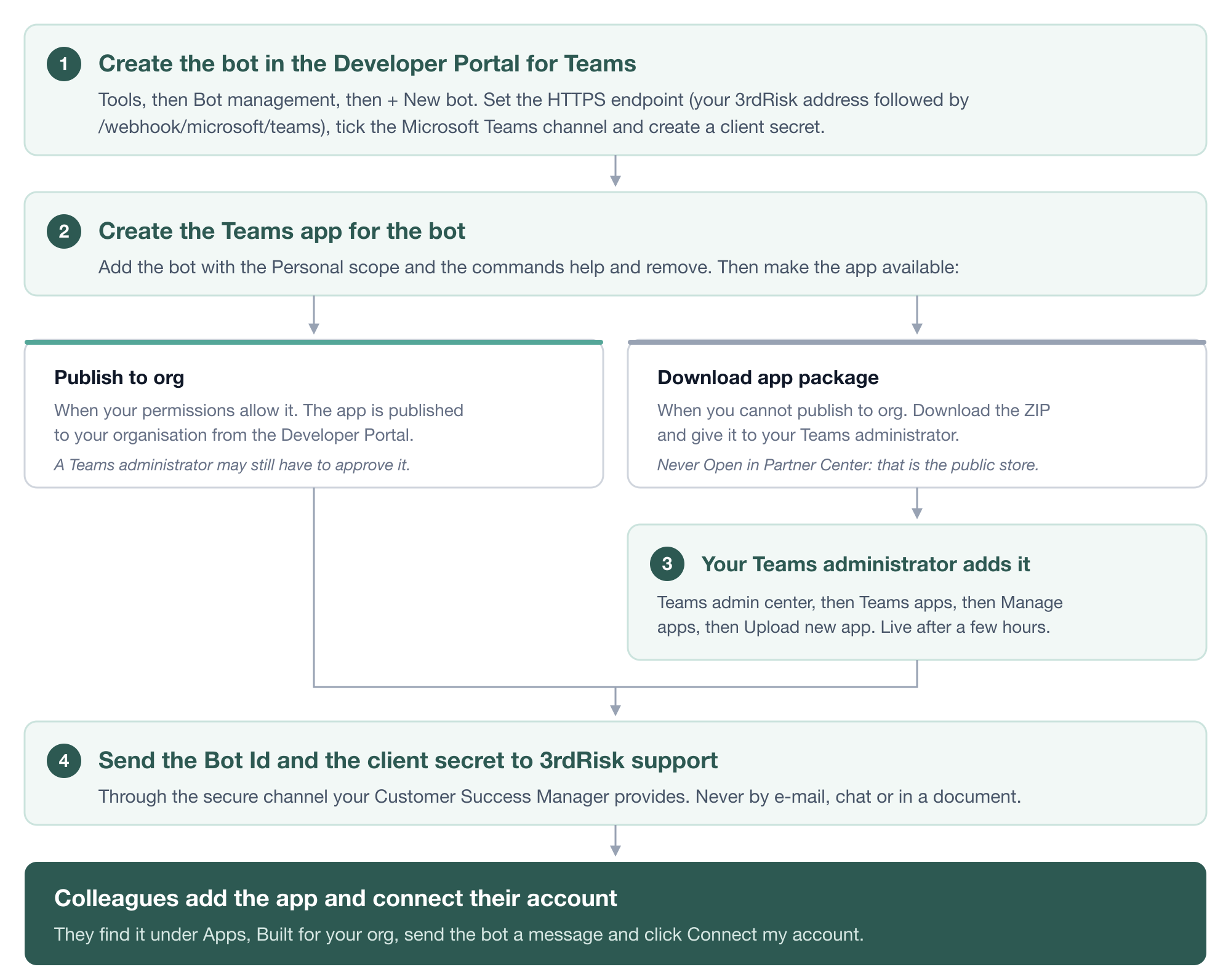
You go through these steps:
- 1. Create the bot in the Developer Portal for Teams.
- 2. Create a Teams app for the bot and publish it to your organisation, or download it as a file.
- 3. If you downloaded the app in step 2, your Teams administrator adds it in the Teams admin center.
- 4. Send the bot's details to 3rdRisk support.
Note: the Microsoft Teams integration must be part of your subscription. On the Integrations page, the Microsoft Teams card shows whether it is enabled for your organisation.
What you need
- A Microsoft 365 work account that can sign in to the Developer Portal for Teams.
- Permission to publish custom apps to your organisation in Microsoft Teams, or a Teams administrator who can approve them.
You do not need an Azure subscription.
1. Create the bot
Navigate to: Developer Portal for Teams, then Tools in the left menu, then Bot management.
- On the Teams-managed bots tab, click on + New bot.
- Enter a Bot name, for example 3rdRisk virtual officer, and click on Create. The portal shows Please wait while we create your bot and then opens the bot.
Set the messaging endpoint
The messaging endpoint is the address in 3rdRisk that Teams sends your colleagues' messages to: the address you sign in to 3rdRisk with, followed by /webhook/microsoft/teams. For example https://<your 3rdRisk address>/webhook/microsoft/teams.
- Open Configure.
- Under Delivery method, choose HTTPS endpoint.
- Enter your messaging endpoint in the field below it.
Note: do not choose Socket mode. 3rdRisk receives messages only on the HTTPS endpoint.
Note: on some 3rdRisk environments the endpoint ends in a number for your organisation as well. If yours does, we tell you when we activate the bot in step 4, and you update the field then.
Connect the bot to Microsoft Teams
- Open Channels.
- Tick Microsoft Teams. Leave Microsoft 365 Extensions (Preview) off.
Create a client secret
- Open Client secrets and click on Create your first client secret.
- Click on Create client secret to confirm.
- Under Client secret value, copy the value with the copy button, then click on Done. The portal shows the value only once.
Copy the bot ID
Go back to Bot management. The Bot Id column shows your bot's ID. Copy it.
Keep the bot ID and the client secret value for step 4.
2. Create the Teams app
Your colleagues find the bot in Teams through an app. You create it in the same Developer Portal.
Navigate to: Developer Portal for Teams, then Apps.
- Click on + New app, enter a name, for example 3rdRisk virtual officer, and click on Add.
- Under Configure, Basic information, fill in the descriptions and the developer information.
- Under Configure, Branding, add the colour icon (192 × 192 pixels) and the outline icon (32 × 32 pixels).
Add the bot
Under Configure, open App features and select Bot. You do not need Personal app or any other feature.
- Under Identify your bot, choose Select an existing bot and pick the bot from step 1. Do not use Create a new bot: you already created it.
- Under What can your bot do?, leave every option off. Do not tick Only send notification: colleagues have to message the bot to connect their account.
- Under Select the scopes where people can use your bot, tick Personal only.
Add the commands
Click on Create your first activity bot command, or on Add a commands once a command exists, and add these two. For each, tick Personal under Where will this command appear? and click on Confirm.
Command | Description (help text) |
|---|---|
help | Shows a link to the 3rdRisk help centre. |
remove | Disconnects your 3rdRisk account from Teams. |
Note: type the command names exactly as shown. The bot recognises no other commands.
Click on Save.
Make the app available
- To try it yourself first, click on Preview in Teams at the top of the page. This only works when your organisation lets you upload custom apps, which your Teams administrator sets with Upload custom apps in an app setup policy.
- To make it available to your organisation, open Publish, then Publish to org, and click on Publish your App.
Note: depending on your Teams policies, a Teams administrator has to approve the app before it shows up for your colleagues. Microsoft explains this in Distribute your Microsoft Teams app.
Download the app instead
Whether you can use Publish to org depends on your permissions in Microsoft Teams. If you cannot, download the app as a ZIP file and give it to your Teams administrator, who adds it in step 3.
- Open Publish, then Publish to store.
- Under App submission checklist, tick every item. Download app package only becomes available once all items are ticked.
- Click on Download app package.
Note: do not click Open in Partner Center. That submits the app to the public Teams Store, and the bot belongs to your organisation only.
3. Add the app in the Teams admin center
Only needed when you downloaded the app as a ZIP file in step 2. A Global Administrator or Teams Administrator of your organisation does this.
Navigate to: Teams admin center, then Teams apps, then Manage apps.
- Click on Upload new app, then Upload, and select the ZIP file. In some versions of the admin center, this is Actions, then Upload new app.
- The app becomes available to your colleagues under Built for your org after a few hours. No further approval is needed.
- On Manage apps, check that the app's status allows it and does not block it.
Note: app permission policies in the Teams admin center decide which colleagues may use the app. Microsoft explains this in Manage custom app policies and settings.
4. Send the bot's details to 3rdRisk
3rdRisk support needs:
- the Bot Id;
- the client secret value.
Send them to your Customer Success Manager, or to 3rdRiskSupport@diligent.com, through the secure channel they provide. We store the details for your organisation and confirm when the bot is active.
Note: never send the client secret by e-mail, chat or in a document.
Connect an account
Once support has confirmed, each colleague connects their own account:
- Open Microsoft Teams, find the app under Apps, Built for your org, and add it. It carries the name your administrator gave it.
- Send the bot any message. It answers with Hi there, I'm the virtual risk officer!
- Click on Connect my account, and sign in to 3rdRisk if asked. The link works for 15 minutes. Send another message for a new one.
- The bot confirms with Congratulations! From then on, notifications for that colleague arrive in Teams.
A colleague can only connect an account of your organisation in 3rdRisk.
Commands
- help: shows a link to the help centre.
- remove: disconnects the 3rdRisk account from Teams.
Removing the app in Teams disconnects the account as well.
Frequently asked questions
What does the app do with my messages?
3rdRisk reads the messages you send the bot only to recognise the help and remove commands, and does not save them with your account.
Can I stop the messages?
Yes. You can mute the chat in Teams, or disconnect your account with remove.
What does 3rdRisk know about my Teams account?
3rdRisk does not read your Teams profile. Your account is linked when you sign in to 3rdRisk through Connect my account, and 3rdRisk stores only the Teams ids of your chat and of your user.
Known limitations
- One bot per organisation. 3rdRisk refuses a bot whose ID another organisation already uses, so every organisation creates its own.
- Bots from the Developer Portal only. A bot created as an Azure Bot in the Azure portal is a single-tenant bot, and 3rdRisk cannot send messages through it. Create the bot in the Developer Portal as described above.
- The virtual officer uses only the client secret we store. When you replace the client secret, send the new one to us the same way. If the stored secret stops working, the virtual officer stops sending messages, and the platform gives no warning.
- There is no screen in 3rdRisk for the bot's details. 3rdRisk support stores them for you.
- Personal chats only. The bot connects one colleague at a time, in a personal chat with that colleague.