
DORA: health check and Register of Information export
The DORA health check tells you whether your data is complete enough to file a Register of Information, and the export turns that data into the file you submit. This article covers both, because the check is what you use to get the export right.
Navigate to: Top menu: DORA: Register of information, then DORA Health-check.
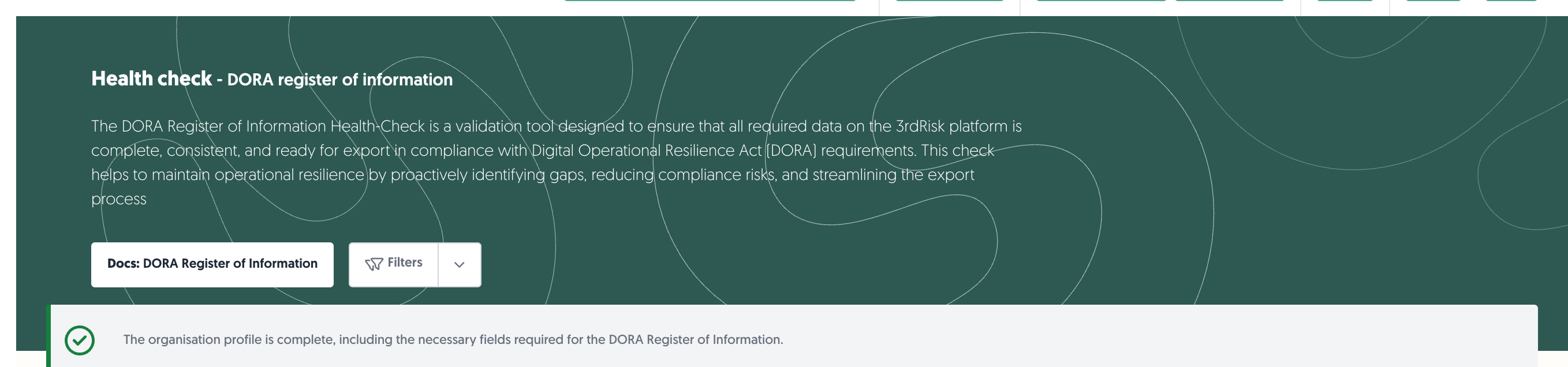
Overview
The health check validates four areas and reports, per record, how many of its required fields are filled:
- Your organisation profile
- Your organisation model — the entities, branches and functions
- Your third parties that are in DORA scope
- Your contracts that are in DORA scope
Only records in DORA scope are checked. A third party or contract without its DORA setting switched on does not appear here at all — which is worth knowing if a section looks suspiciously empty.
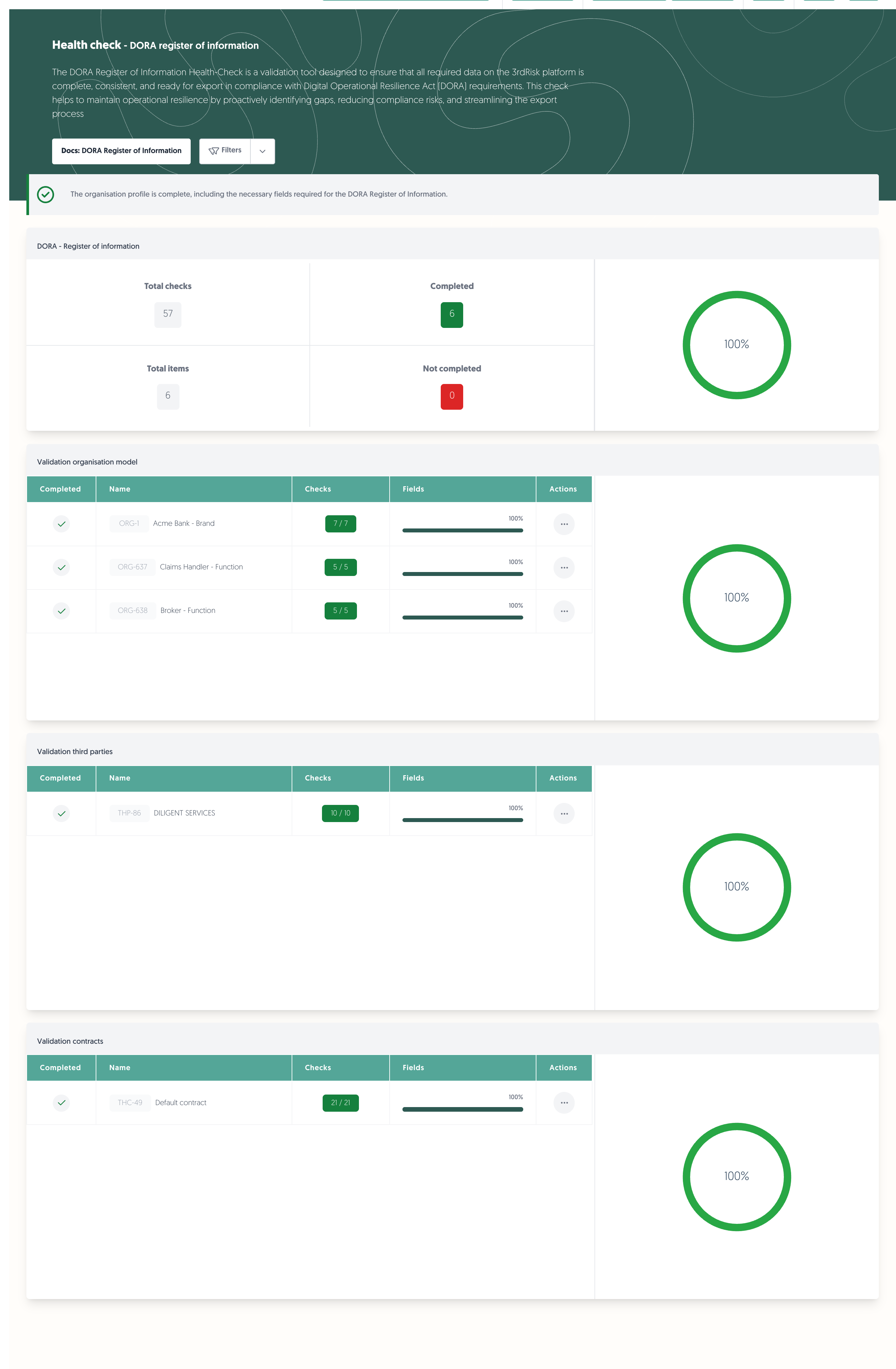
1. Reading the health check
The summary
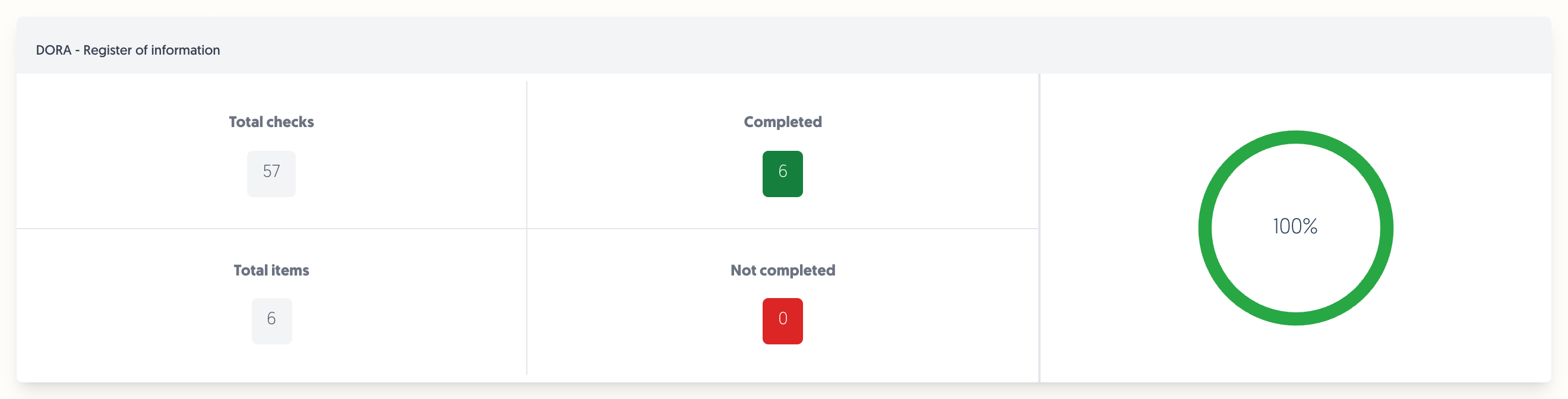
- Total checks: every individual field check across all four areas.
- Completed: the records that passed all of their checks.
- Total items: the records being checked.
- Not completed: the records with at least one check outstanding.
The ring shows the share of records that are fully complete. It is records, not fields — one record missing one field counts as not completed.
Your organisation profile
Profile problems appear as an Attention needed message at the top of the page, listing each one:
Attention needed: Some fields are incomplete. Fill in the missing details to meet DORA requirements.
When all six are in place the message is replaced by a green confirmation: The organisation profile is complete, including the necessary fields required for the DORA Register of Information.
The four validation blocks
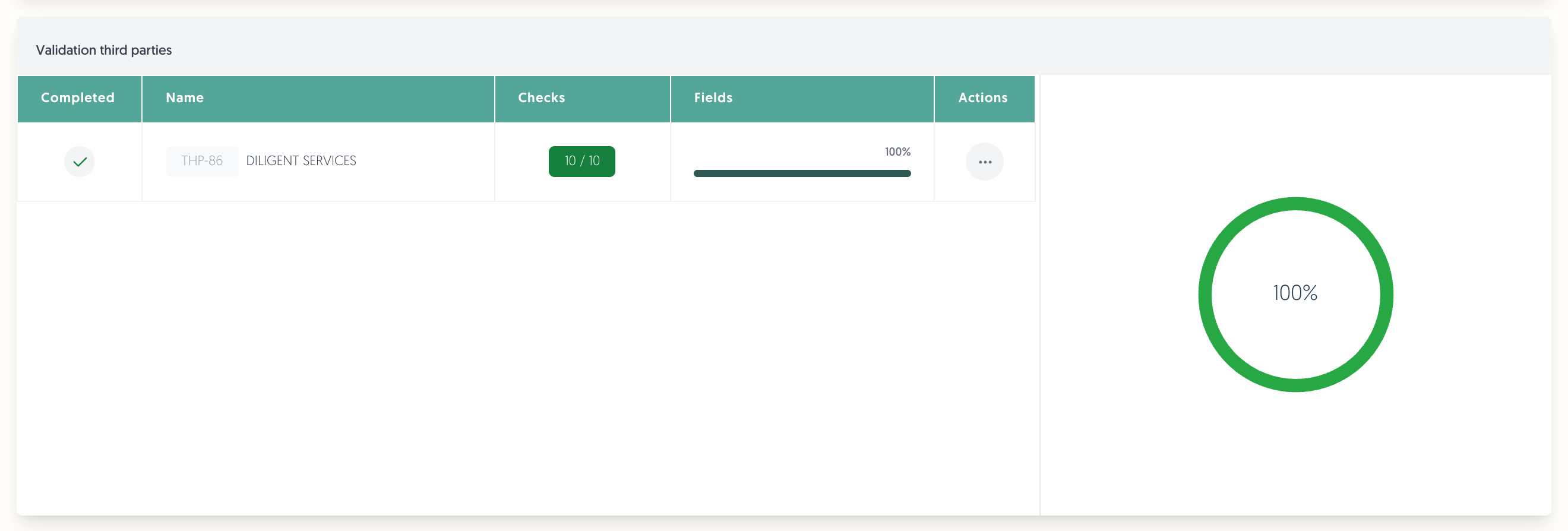
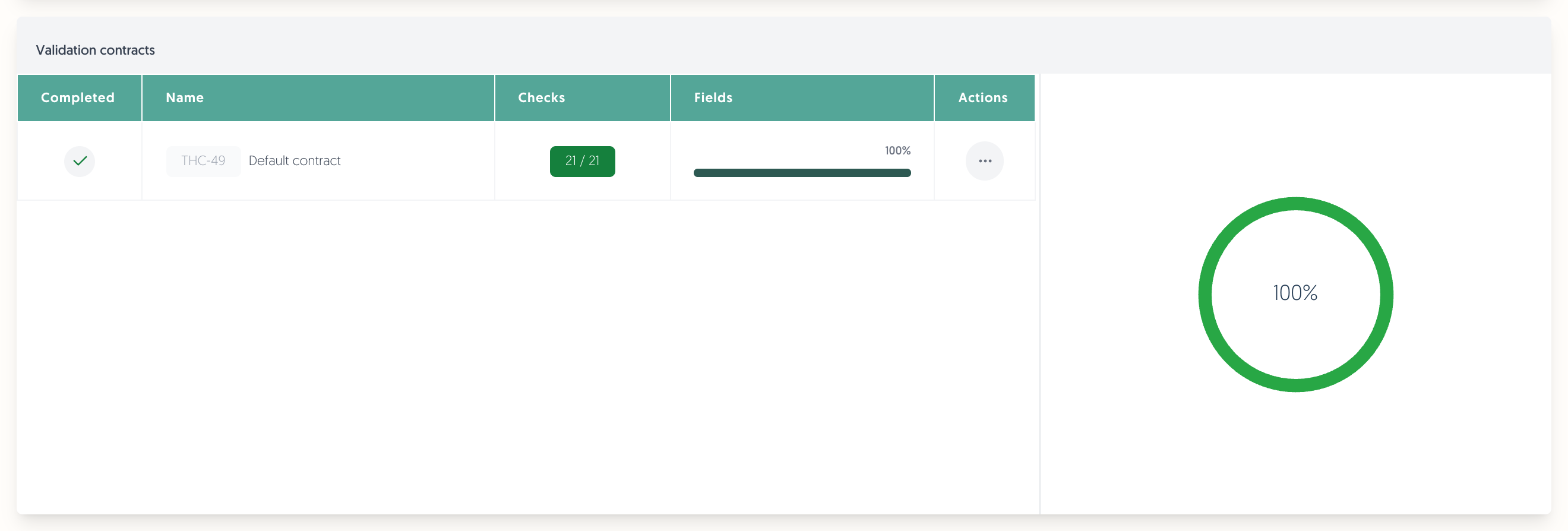
Each block lists its records with the same columns:
- Completed: a tick when every check passed, a cross when something is outstanding.
- Name: the record, with its reference — ORG-1, THP-86, THC-49.
- Checks: how many checks passed out of the total, in green when complete and red when not.
- Fields: the same as a percentage.
- Actions: the ••• menu, to open the record and fill in what is missing.
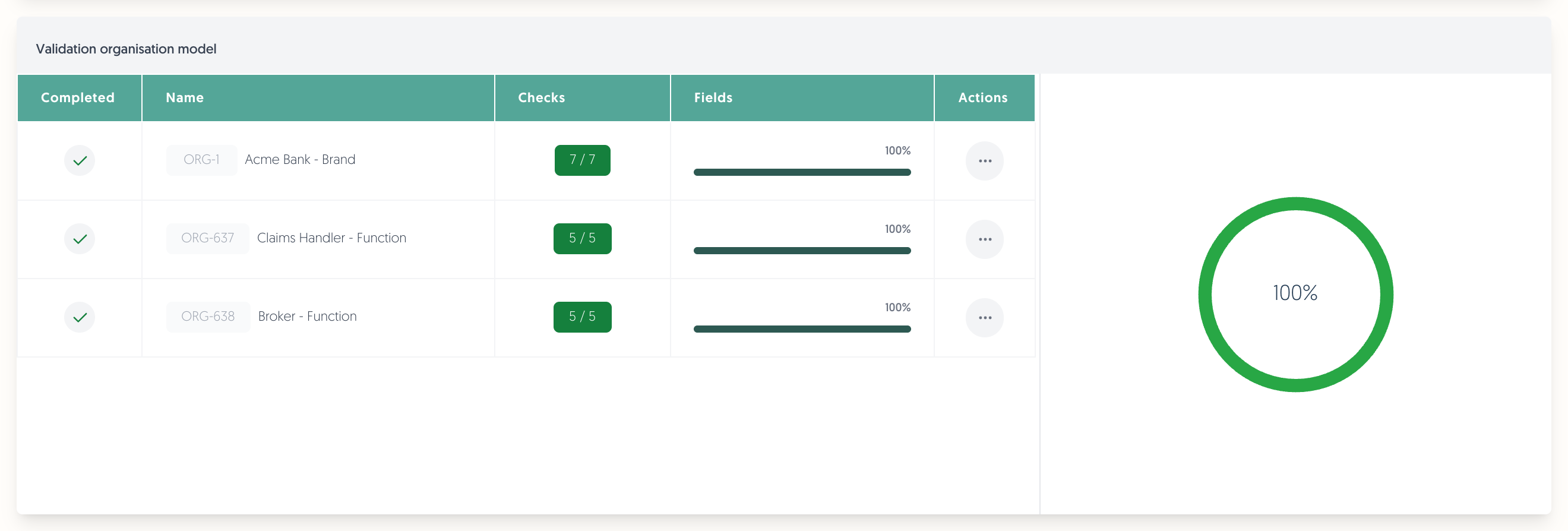
A complete record looks like this:
Note: use Filters and Show only not completed to hide the records that are already done. On a large register that is the only practical way to work through the list.
2. What each area checks
Organisation profile
- A LEI that is 20 characters and exists in the GLEIF register.
- A LEI whose registered legal name matches your organisation's name.
- A currency.
- A country code.
- A name.
- A type of entity.
Organisation model
Per entity and branch: a LEI (same three tests), a legal name, a country code and a type of entity.
Third parties in DORA scope
Per third party: name, identification type, identification code, country code, ICT service provider type, country of head office and type. When the identification type is Legal Entity Identifier (LEI), the code gets the same three LEI tests as above.
If the third party has an ultimate parent undertaking, its total annual expense becomes required too.
Contracts in DORA scope
Per contract: start date, whether it is an intra-group contract, the type of contractual arrangement, the annual expense or estimated cost, the type of ICT services, the country where the services are provided and the level of reliance.
Note: the LEI tests call the GLEIF register live, so a page with many entities takes a moment to load. Results are cached briefly, so a LEI you have just corrected elsewhere may take a few minutes to turn green here.
3. Export the Register of Information
Click on DORA: Register of information in the top menu and choose a format:
- Excel (XLSX) — one workbook, one sheet per reporting table.
- xBRL-CSV standard — a set of CSV files in the layout the supervisor's taxonomy expects.
Both ask for a reference date first:
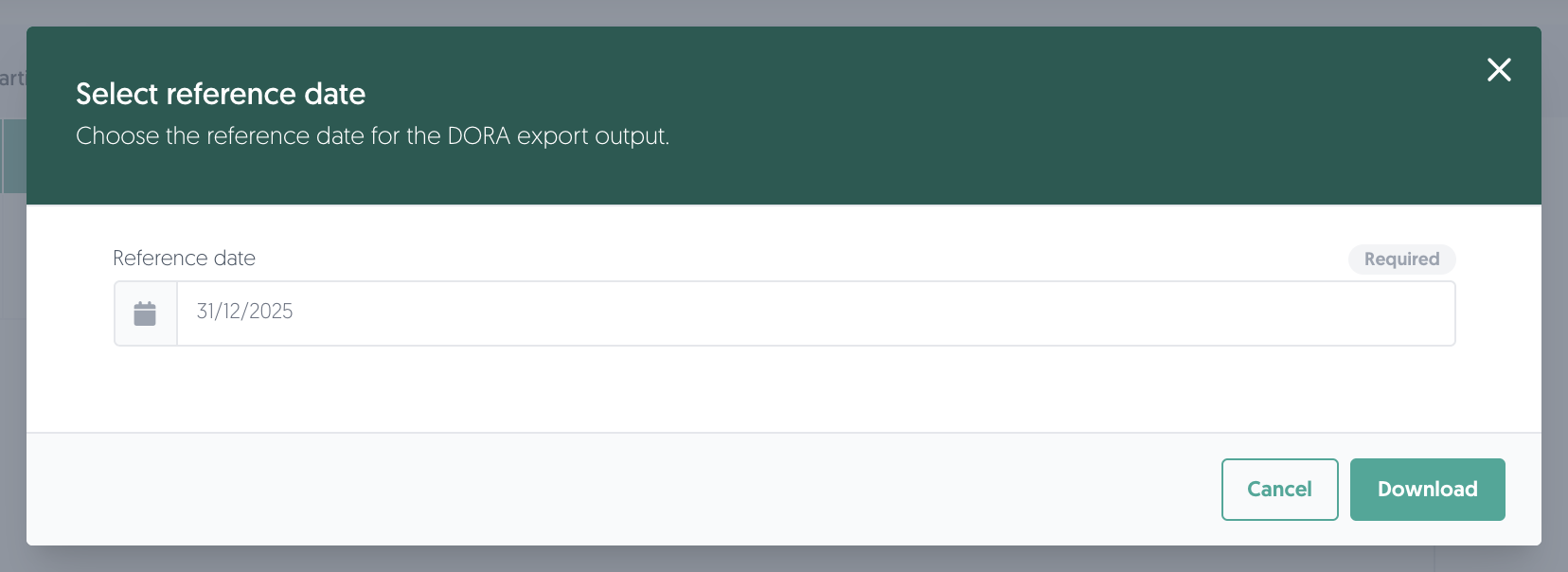
The reference date is the date the register describes — normally the end of the reporting period, not the day you produce the file. Check it before you download, because the field is pre-filled with a fixed date rather than one derived from today.
Click on Download to produce the file.
The export contains 14 reporting tables plus a terminology sheet. The same table is numbered differently per format: the branches table is RT_01.03 in the Excel workbook and B_01.03 in the xBRL-CSV output.
Learn more about which platform field feeds which cell: Reference: platform fields to Register of Information tables
4. A sensible order of work
- Complete your organisation profile — LEI and currency.
- Complete your organisation model — entities, branches and functions.
- Switch on DORA for the third parties in scope and complete their fields.
- Switch on DORA for the contracts in scope and complete theirs.
- Return to the health check and work through what is still red.
- Export once the register is as complete as you can get it.
Note: the export does not require a fully green health check. It will produce a file with whatever is there, so an incomplete register exports as an incomplete file.
Permissions needed
Permissions needed: access to the dashboard, which is what the health check page is part of. Filling in the missing data needs the permissions for each area — organisation profile, organisation model, third parties and contracts respectively.
Known limitations
- Only records in DORA scope are checked. A third party or contract without its DORA setting on is invisible to the health check, and to the export.
- The reference date is pre-filled with a fixed date. Always set it yourself for the period you are reporting on.
- The LEI name test is exact. "Example Ltd" and "EXAMPLE LTD" are treated as different, and the check reports the name GLEIF holds so you can copy it.
- A green health check is not a guarantee of a valid filing. It checks that the platform's required fields are filled, not that the resulting register satisfies your supervisor.