
Talk to your data with MCP
Ask questions about your third parties, contracts, risks, assessments, issues, action plans and questionnaires in plain language, from an AI assistant such as Claude, instead of searching with filters.
MCP is the technology that makes this possible. This page explains what it is and where to find each part of the documentation.
Overview
MCP stands for Model Context Protocol. It is an open standard that lets an AI assistant connect to an application and use it on your behalf. 3rdRisk offers an MCP server. Once you connect your AI assistant to it, you can say things like:
- "Which assessments are waiting for my review?"
- "Show me the open critical issues and who owns them."
- "Add a risk about a supplier outage and make me the owner."
The assistant looks up the answer in 3rdRisk, or makes the change, and tells you what it found or did. Each answer includes links so you can open the record in 3rdRisk.
Three things are always true:
- You sign in yourself. The assistant never sees your password.
- It acts as you. It can see and change exactly what your own account can, nothing more.
- Changes are recorded. They appear in the history of the record in your name.
What is available
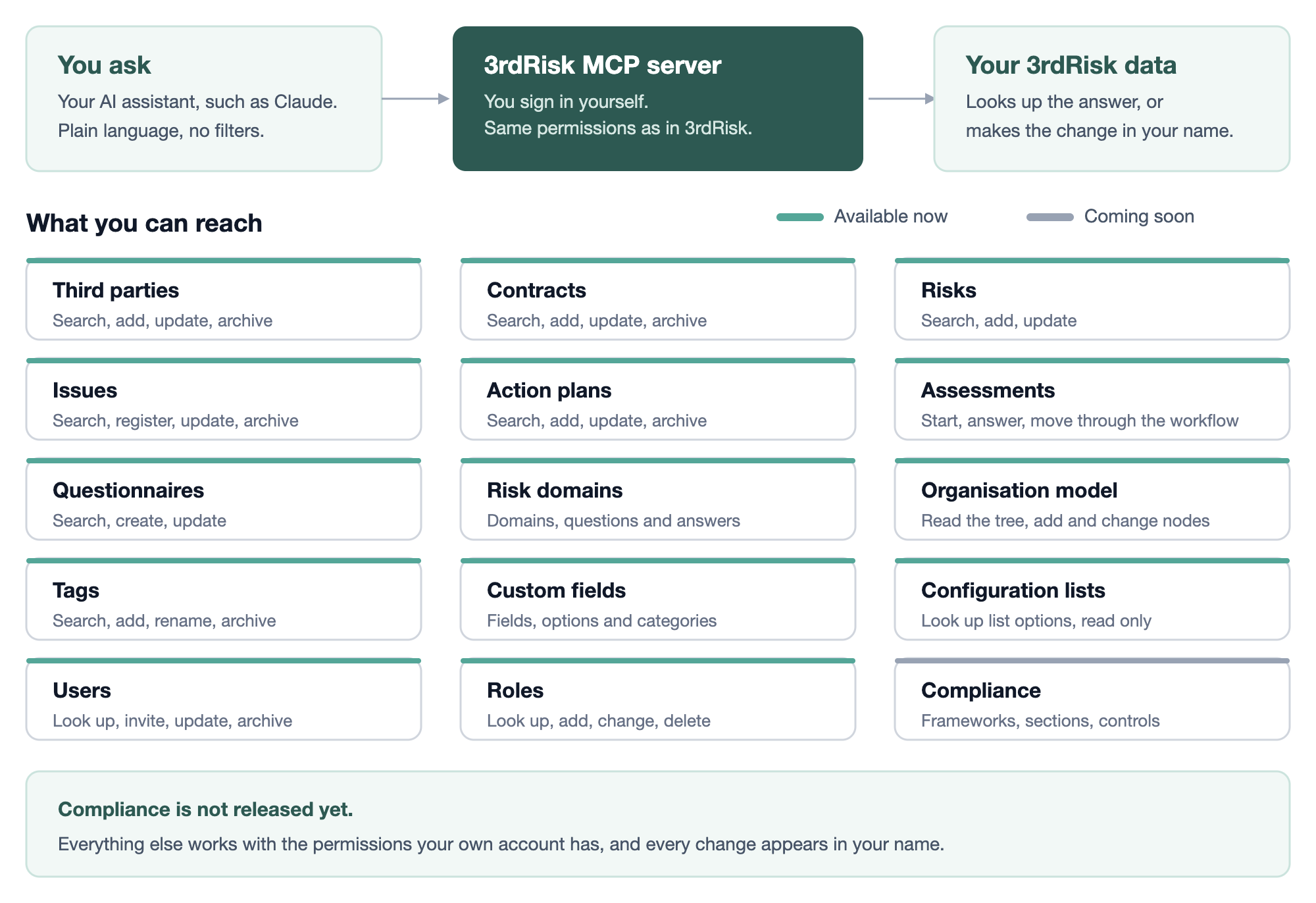
Today you can use MCP for third parties, contracts, risks, issues, action plans, assessments, questionnaires, risk domains, the organisation model, tags, custom fields, users, roles and configuration lists. Compliance is being finished and will be released soon.
Getting started
- Connect Claude to 3rdRisk: what you need, the steps for Claude Desktop, claude.ai and Claude Code, and how to check that it works.
- MCP security and permissions: how the connection is secured, how long it lasts and what administrators can see and control.
What you can do per part of the platform
Part | What Claude can do | Reads | Changes |
|---|---|---|---|
Search, read, add, update, archive, read the history | Yes | Yes | |
Search, read, add, update, archive, read the history | Yes | Yes | |
Search, read, add, update, read the history | Yes | Yes | |
Search, read, start, update, move through the workflow, work through the questions, read the history | Yes | Yes | |
Search, read, register, update, archive, read the history | Yes | Yes | |
Search, read, add, update, archive, read the history | Yes | Yes | |
Search, read, create, update, read the history | Yes | Yes | |
Read the domains, add and change their questions and answer options, archive and restore them, read the history | Yes | Yes | |
Read and list the answers of third parties, contracts and nodes, fill them in, read the history | Yes | Yes | |
Search and look up colleagues, invite, update, archive and restore users, and manage their roles and access domains | Yes | Yes | |
Look up roles and permissions, add, change and delete roles | Yes | Yes | |
Search, add, rename, archive, read the history | Yes | Yes | |
Look up, add and change fields, options and categories, and fill in their values on third parties and contracts | Yes | Yes | |
Read the tree, add and change nodes, read the history | Yes | Yes | |
Look up the options of a configuration list | Yes | No |
Step by step
- Check with your administrator that the AI features are enabled for your organisation.
- Connect your assistant, using Connect Claude to 3rdRisk.
- Test the connection by asking the assistant to use the 3rdRisk ping tool.
- Ask a question about your own data. The page for each part lists example questions.
- Check important changes in 3rdRisk through the link in the answer. Ask the assistant to confirm with you before it archives or starts anything.
Good to know
- Be specific. Name the record by its id, such as
THP-12orISS-21, when you can.
- The assistant can make mistakes. Read what it proposes before you agree, particularly for changes.
- Not everything is available. If a tool does not exist for what you want, the assistant says so. The "Known limitations" on each page list what is not covered.
Known limitations
- Only the parts of the platform in the table above are available. Compliance follows soon.
- Only assistants that support signing in through the browser can connect. The documentation describes Claude.
- There is no screen in 3rdRisk where you can see or remove your connections. See MCP security and permissions.