
Connect Claude to 3rdRisk
Connect Claude to your 3rdRisk data so you can ask questions about your third parties, risks, assessments, issues and questionnaires in plain language.
You connect once. After that, Claude can look things up and, where you allow it, make changes on your behalf, using exactly the permissions your own 3rdRisk account has.
Learn more about MCP: Talk to your data with MCP
Overview
Claude connects to 3rdRisk through an MCP server. Your organisation has its own address for it: the address you use to sign in to 3rdRisk, followed by /mcp/.
Example: if you sign in at https://my.example-company.com, the MCP address is https://my.example-company.com/mcp/.
When you connect, 3rdRisk asks you to sign in and to confirm that Claude may use the server on your behalf. Claude never sees your password.
Before you start
- The AI features are enabled for your organisation. If they are not, the address does not respond and Claude reports that it cannot connect. Ask your 3rdRisk administrator.
- You can sign in to 3rdRisk. You need the permission Login to the platform.
- Your account is fully set up. Your e-mail address is verified and you have replaced any temporary password. If your organisation requires two-factor authentication, you have set it up, and if you use it you will be asked for your code. 3rdRisk checks this when you confirm the connection.
- Your Claude plan allows custom connectors. On a team or enterprise Claude plan, an administrator may need to allow them first.
Connect from Claude Desktop or claude.ai
- Open Claude, then Settings, then Connectors.
- Click on Add custom connector.
- Enter a name, for example
3rdRisk, and paste your MCP address.
- Click on Add and then Connect. A 3rdRisk sign-in page opens.
- Sign in if asked. The page Authorize appears.
- Click on Authorize.
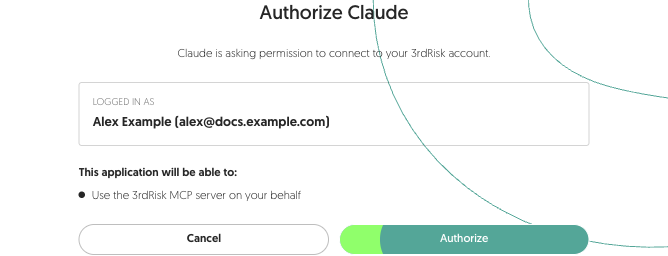
The page names the application asking for access, shows the account you are signed in with and states what it will be able to do: Use the 3rdRisk MCP server on your behalf. Check that the account is the one you want to use before you continue.
Note: The wording of the Claude menus can change between versions. If you cannot find Connectors, search the Claude help for "custom connectors".
Connect from Claude Code
Claude Code is Claude for the command line. Run this once, replacing the address with your own:
claude mcp add --transport http 3rdrisk https://my.example-company.com/mcp/
Then start Claude Code and type /mcp, choose 3rdrisk and choose Authenticate. Your browser opens on the same Authorize page, which now names the application Claude Code (3rdrisk), after the name you gave the server.
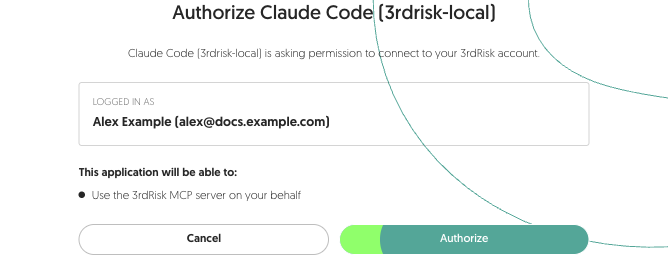
After you confirm, Claude Code shows the server as connected and lists its tools.
Check that it works
Ask Claude: "Use the ping tool of 3rdRisk."
Claude should answer that the 3rdRisk MCP server is running and name the account you are signed in with, together with the time. If it does, you are connected.
From here, try a question about your own data, for example "List my third parties that are archived" or "Which open issues are due this month?" The pages for each part of the platform list what is possible:
How long the connection lasts
Claude receives access for one hour at a time and renews it by itself. As long as Claude uses the connection at least once every two weeks, you do not have to confirm again. After two weeks without use, Claude asks you to connect again.
Learn more: MCP security and permissions
Troubleshooting
- Claude says it cannot connect, or the address shows "not found". The AI features are not enabled for your organisation, or the address is wrong. Use the address you sign in with, followed by
/mcp/.
- After confirming, Claude reports "forbidden". Your account lacks the permission Login to the platform, or it was removed after you connected.
- The connection is refused before the sign-in page opens. The application you are using is not on the list of addresses your organisation allows. Your 3rdRisk administrator or the 3rdRisk support team can add it.
- Claude reports "too many requests". Wait a minute and try again. Registering a new connection is limited to five per minute from one internet address.
- A tool answers "No … is available to you". The record does not exist or your account is not allowed to see it. 3rdRisk gives the same answer for both on purpose.
Known limitations
- Only clients that support signing in through your browser can connect. Tools that can send only a fixed access key cannot.
- This page describes Claude. Other AI clients are not covered here.
- There is no screen in 3rdRisk where you can see or remove your connections. Administrators can see when someone last connected, and can cut off access, as described in MCP security and permissions.