
MCP security and permissions
Everything Claude does through MCP happens as you. This page explains how the connection is secured, what permissions apply and what administrators can see and control.
Learn more about connecting: Connect Claude to 3rdRisk
Overview
- You sign in yourself. Claude never receives your password. You sign in on 3rdRisk and confirm one specific permission: Use the 3rdRisk MCP server on your behalf.
- Claude can do what you can do, and no more. Every tool checks your normal permissions and roles. If you cannot open a record in 3rdRisk, Claude cannot read it either. If you cannot edit or archive a record, Claude cannot either.
- Fields you may not see stay out. Where a record holds information your permissions do not cover, such as the name of a reviewer, the answer leaves it out.
- Every change is recorded. Changes made through MCP appear in the history of the record in your name, like changes made in the application.
What is checked when you connect
Before 3rdRisk lets you confirm a connection, it checks that:
- you have the permission Login to the platform;
- your e-mail address is verified;
- you have replaced a temporary password;
- if your organisation requires two-factor authentication, you have set it up;
- if you use two-factor authentication, you enter your code.
The last three checks do not apply if your organisation uses single sign-on, because the sign-in then happens at your identity provider. These checks happen when you confirm the connection. After that, only the permission Login to the platform is checked again, on every request.
How long access lasts
- Access is valid for one hour. Claude renews it automatically.
- Renewal is valid for two weeks from the last renewal. Each renewal starts a fresh two weeks, so a connection that is used regularly does not expire.
- After two weeks without use, you confirm the connection again.
Request limits
Each user can make up to 300 MCP requests per minute. Registering new connections is limited to five per minute and 20 per hour from one internet address. When a limit is reached, Claude receives a "too many requests" answer and can try again shortly after.
What administrators can see
Navigate to: Left menu: Configuration, then Users.
- The column Last MCP connection shows the date on which each user last started an MCP session. Users who never connected show Never connected. A date is recorded when a session starts, not for every question Claude asks.
- The filter MCP never connected lists the users who have not connected.
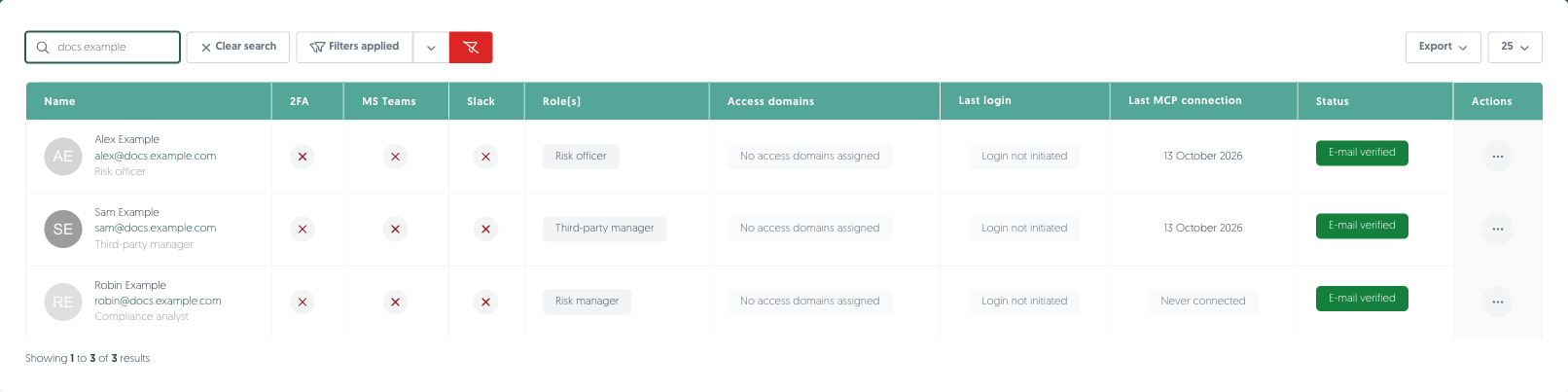
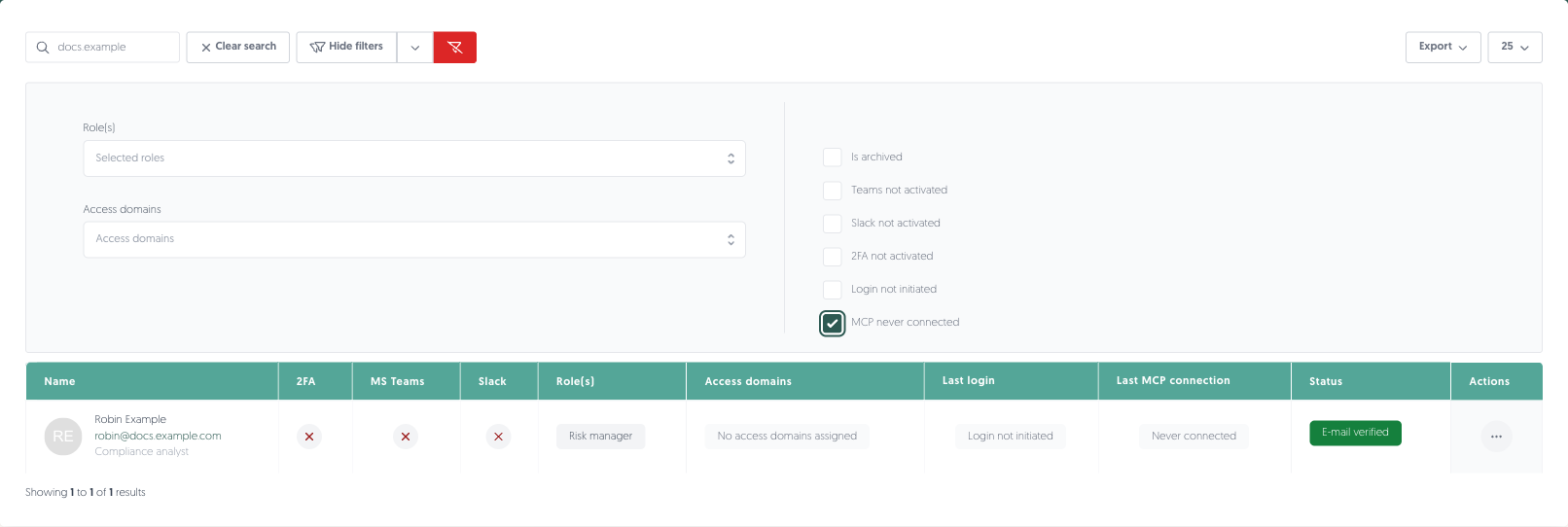
Note: The column and the filter are visible when the AI features are enabled for your organisation.
Learn more about the Users page: Users
Cutting off a user's access
Remove the permission Login to the platform from the user, for example by changing their role in Configuration, then Roles. 3rdRisk checks this permission on every MCP request, so the user's connection stops working immediately, even though their access is still valid for the rest of the hour.
Which parts of the platform Claude can reach
Known limitations
- No screen to remove a connection. There is no list of connected applications in 3rdRisk. The way to stop a user is to remove their permission Login to the platform.
- The application name is chosen by the application. The page where you confirm a connection shows the name an application gave itself. Only confirm connections you started yourself.
- IP restrictions are not applied. An IP address allow list configured for your organisation does not apply to the sign-in for MCP or to MCP requests.
- Audit entries show technical field names. The change history that Claude can read shows the underlying field names instead of the labels you see in the application.